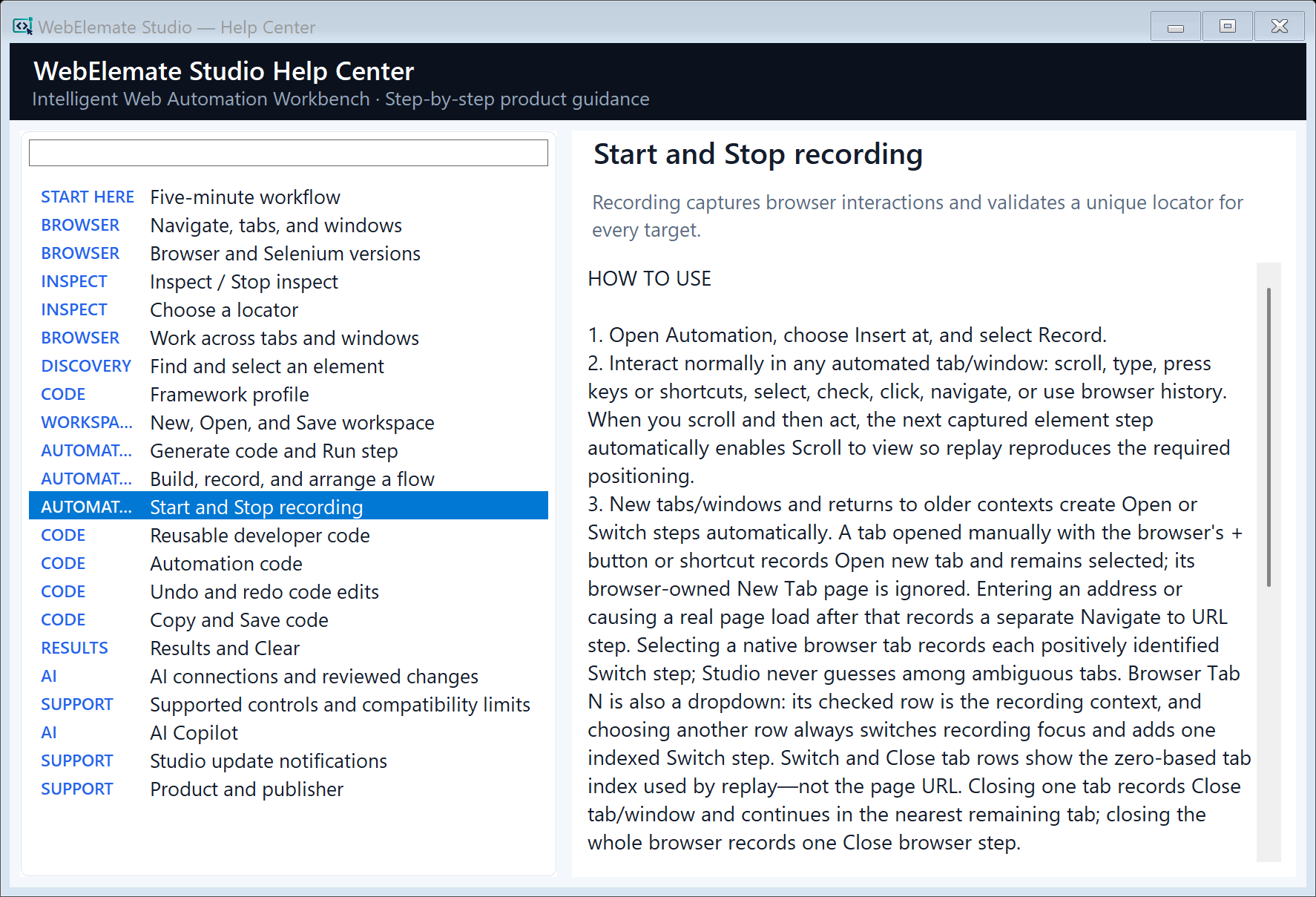
RECORD
Use the browser naturally.
Choose Record, then type, select, check, click, navigate, use meaningful keys, or move through supported tabs, windows, and frames. WebElemate adds each captured action to the flow in observed order.
 WebElemateSTUDIO
Windows desktop · Selenium authoring · Optional AI review
WebElemate Studio turns real browser work into automation your team can see, run, and own. Inspect a live page, compare locator suggestions, verify each candidate with JS Test, and run a draft step in the browser beside its generated code. Or press Record to capture supported interactions as editable steps with visible locators, waits, recovery, and browser context. Review the flow, replay it with actionable diagnostics, and export readable Selenium source. Optional AI can propose loops, conditions, or repairs for your approval—it never silently rewrites the flow and is never required.
Designed to work with your existing stack
Record → review → run → own
Recording is the fastest way to create a transparent first draft—not a black box. WebElemate turns supported browser activity into an ordered flow you can inspect, correct, replay, and convert into maintainable source.
RECORD
Choose Record, then type, select, check, click, navigate, use meaningful keys, or move through supported tabs, windows, and frames. WebElemate adds each captured action to the flow in observed order.
REVIEW
Stop recording and inspect every row. Insert manual steps, reorder or duplicate actions, select better locators, tune waits and recovery, map data, and keep browser context explicit.
RUN & GENERATE
Replay the same reviewed sequence in Chrome, Edge, or Firefox with preflight checks and actionable Results. Generate readable Selenium code for a supported language and framework profile without rebuilding the automation.
OPTIONAL AI
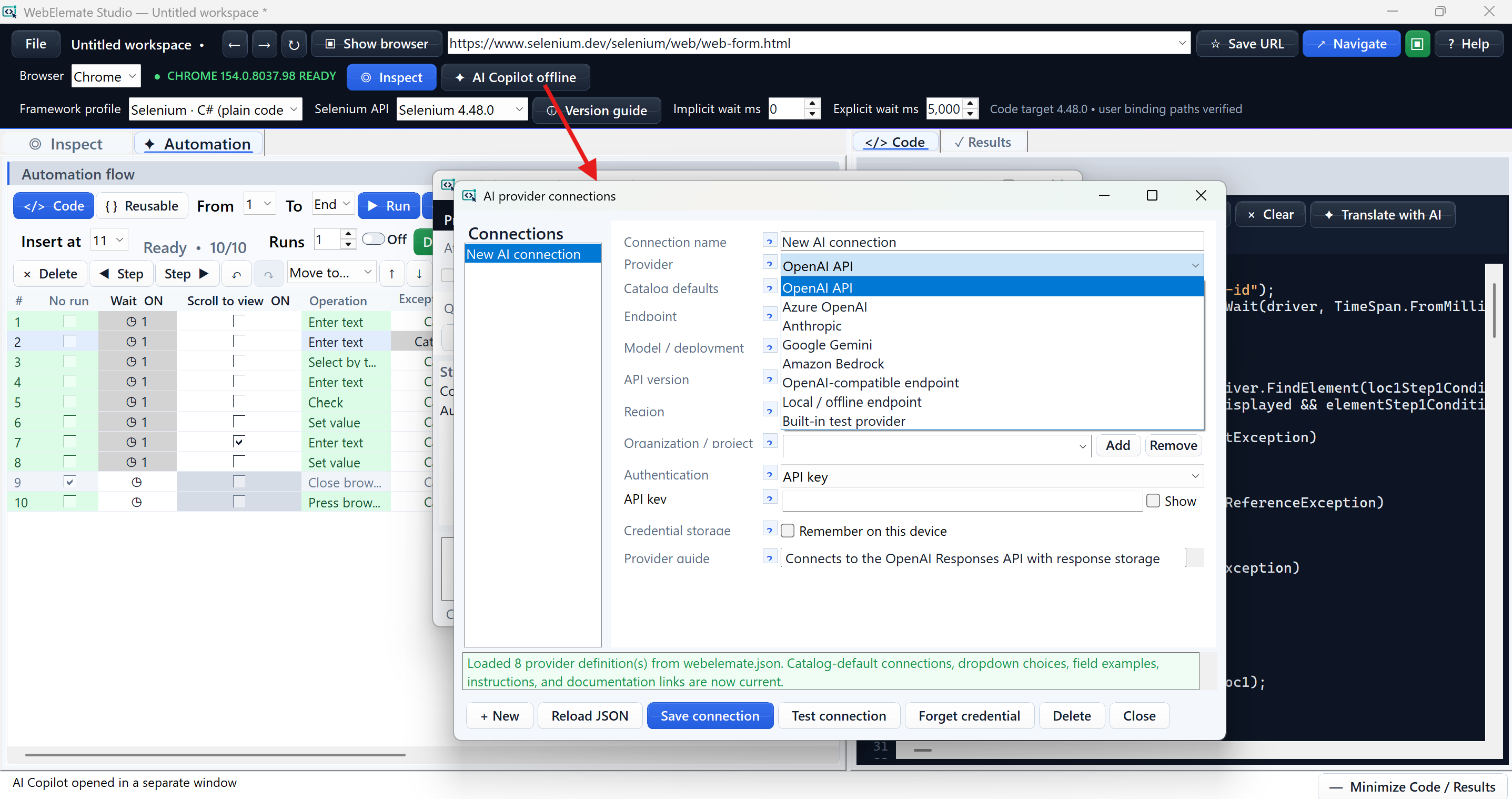
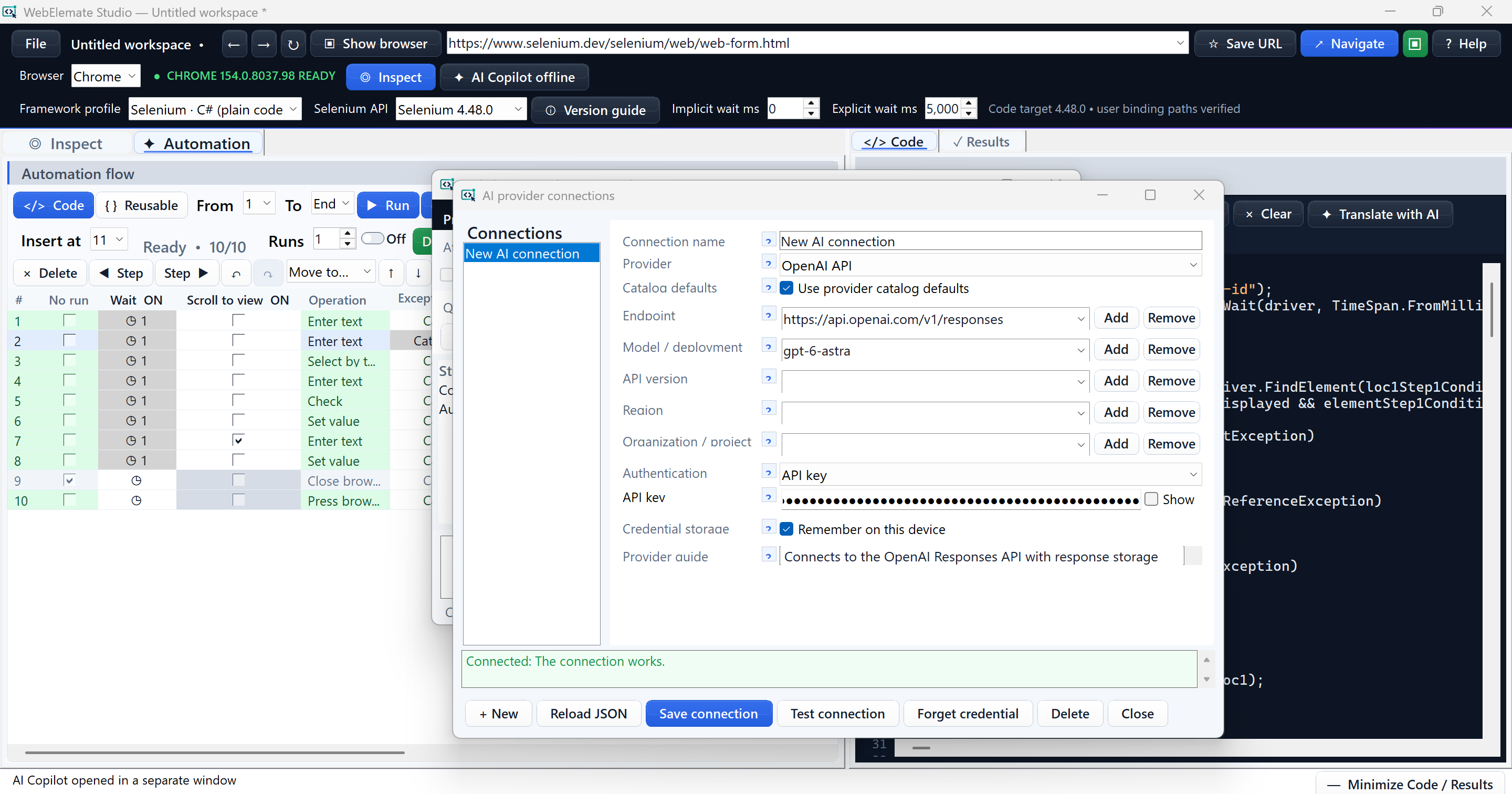
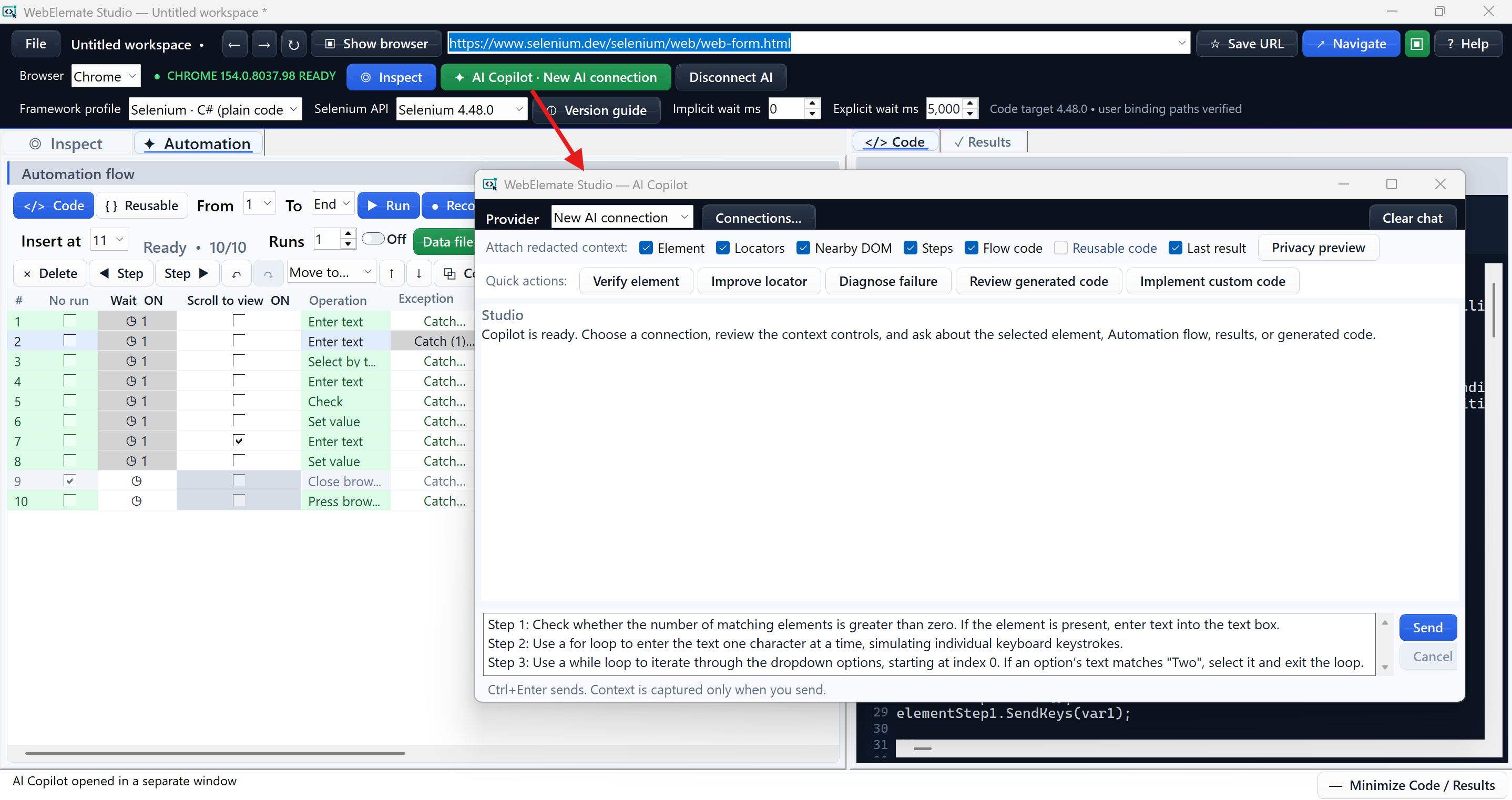
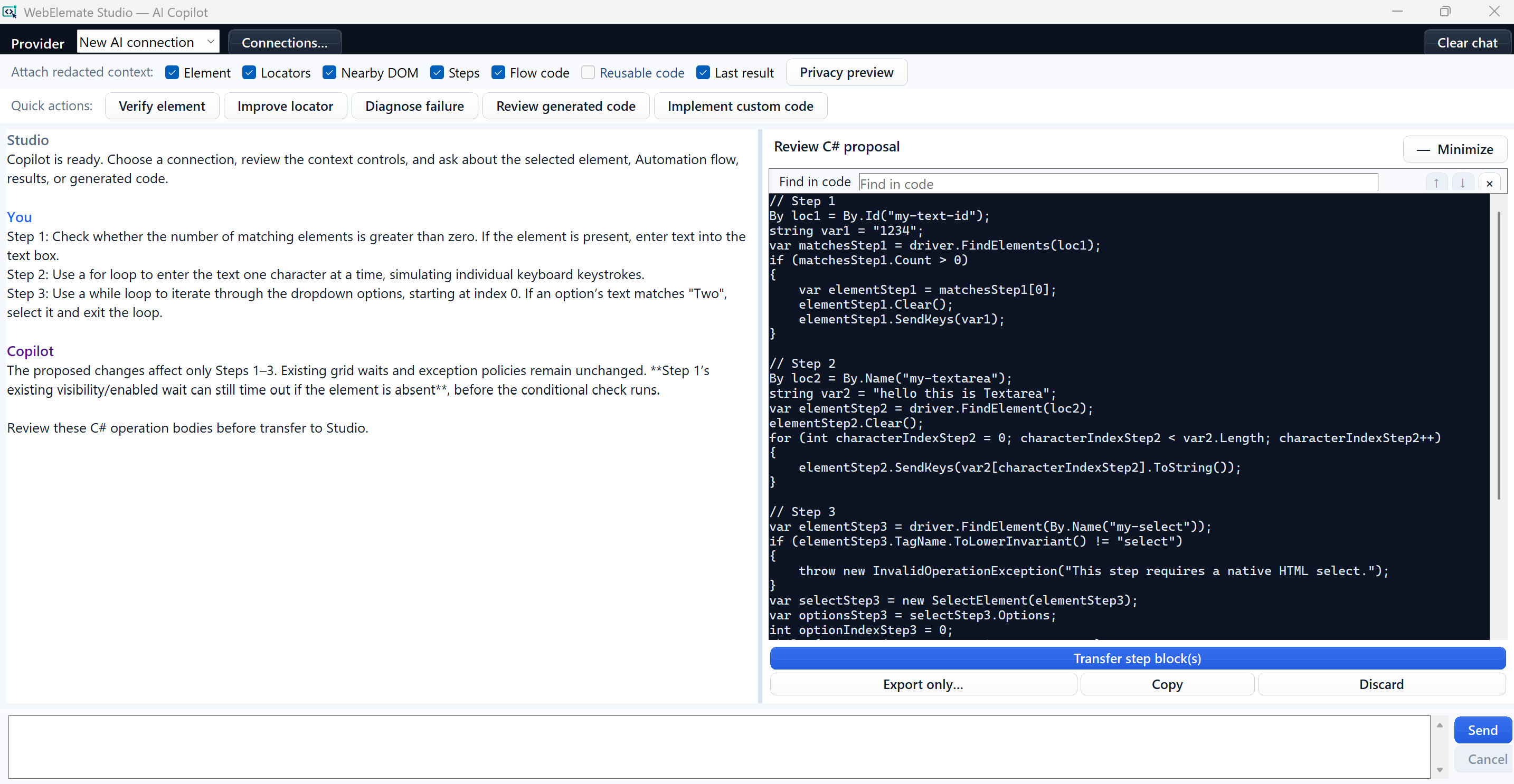
Share only selected, redacted context with a provider you configure. Ask for a second look or a proposal such as a bounded loop or condition, review and edit it, then transfer only what you approve.
Optional, user-controlled AI
Inspection, flow authoring, browser execution, diagnostics, and code export all work without AI. When it is useful, preview and share only selected, redacted context with a provider you configure for analysis or reviewable step-logic proposals—including loops and conditions. Review every proposal, then transfer only what you approve.
Provider selected by you · Context previewed before sending · No silent flow changes
Why WebElemate
WebElemate keeps the inspected element, chosen locator, action, run result, and generated code together. Anyone reviewing the flow can see what the test does, how it finds each element, and where a failure occurred.
Inspect the rendered page, understand the element’s role and state, choose a compatible action, and carry the selected locator and alternatives into the flow.
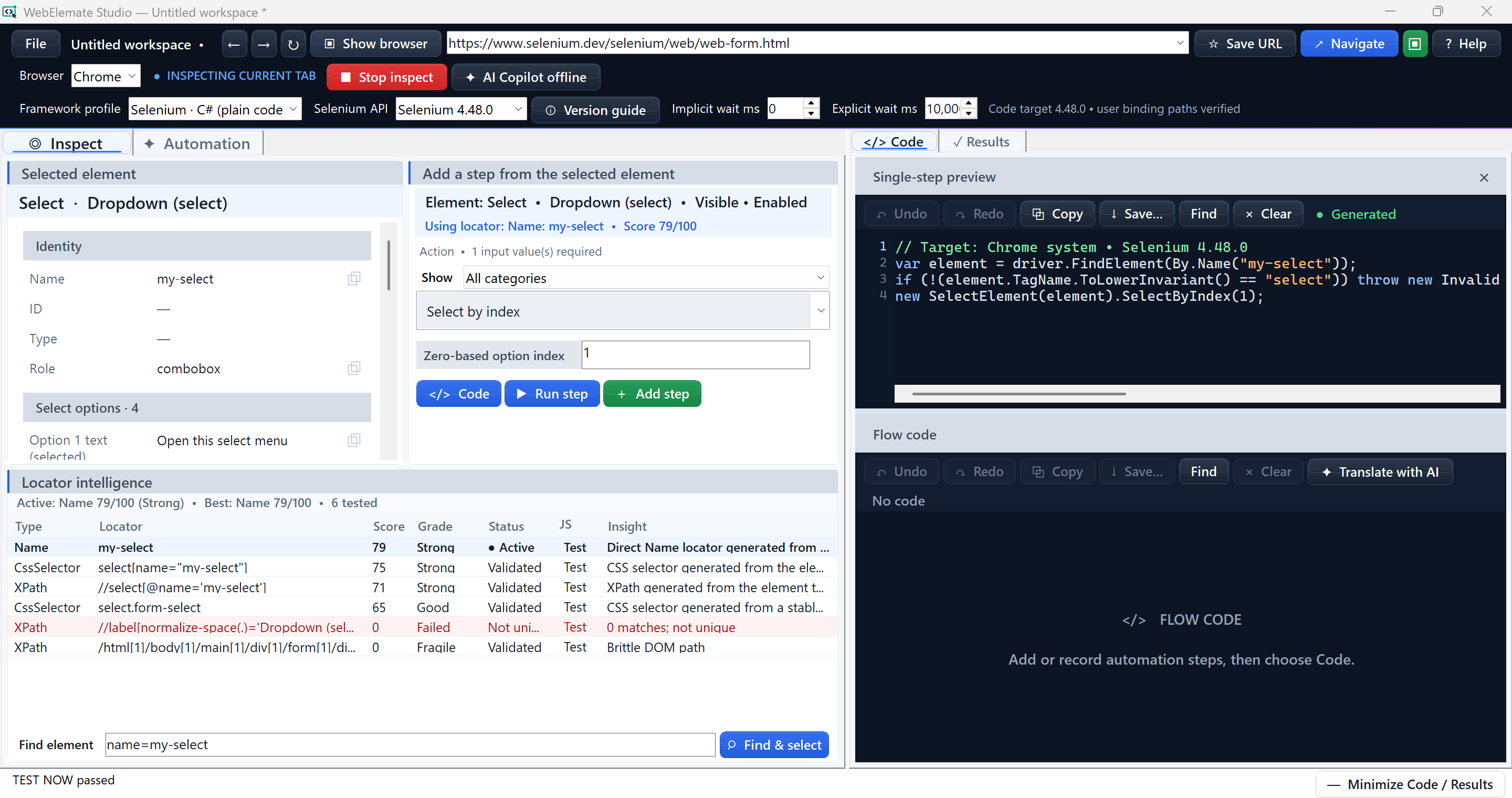
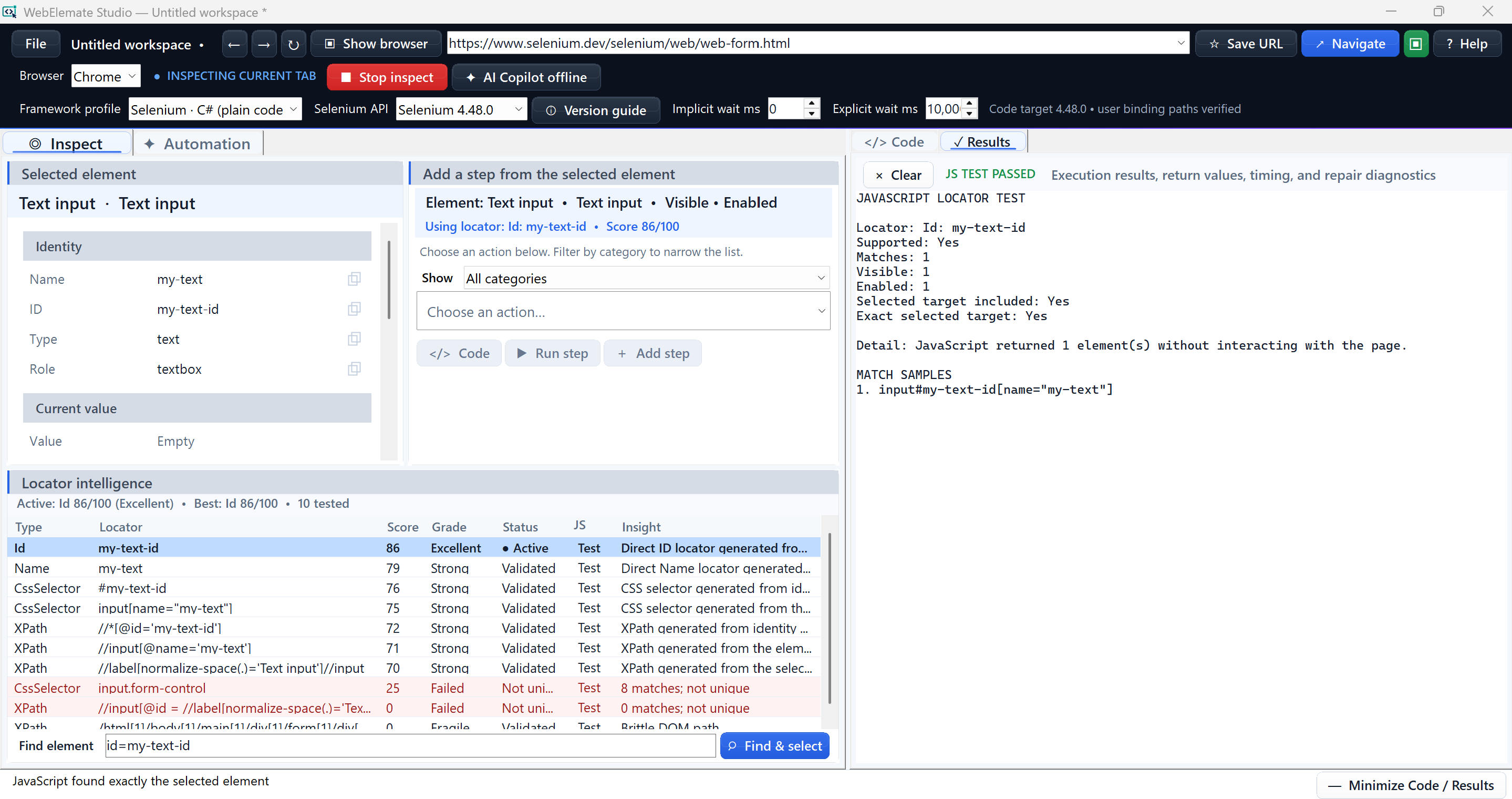
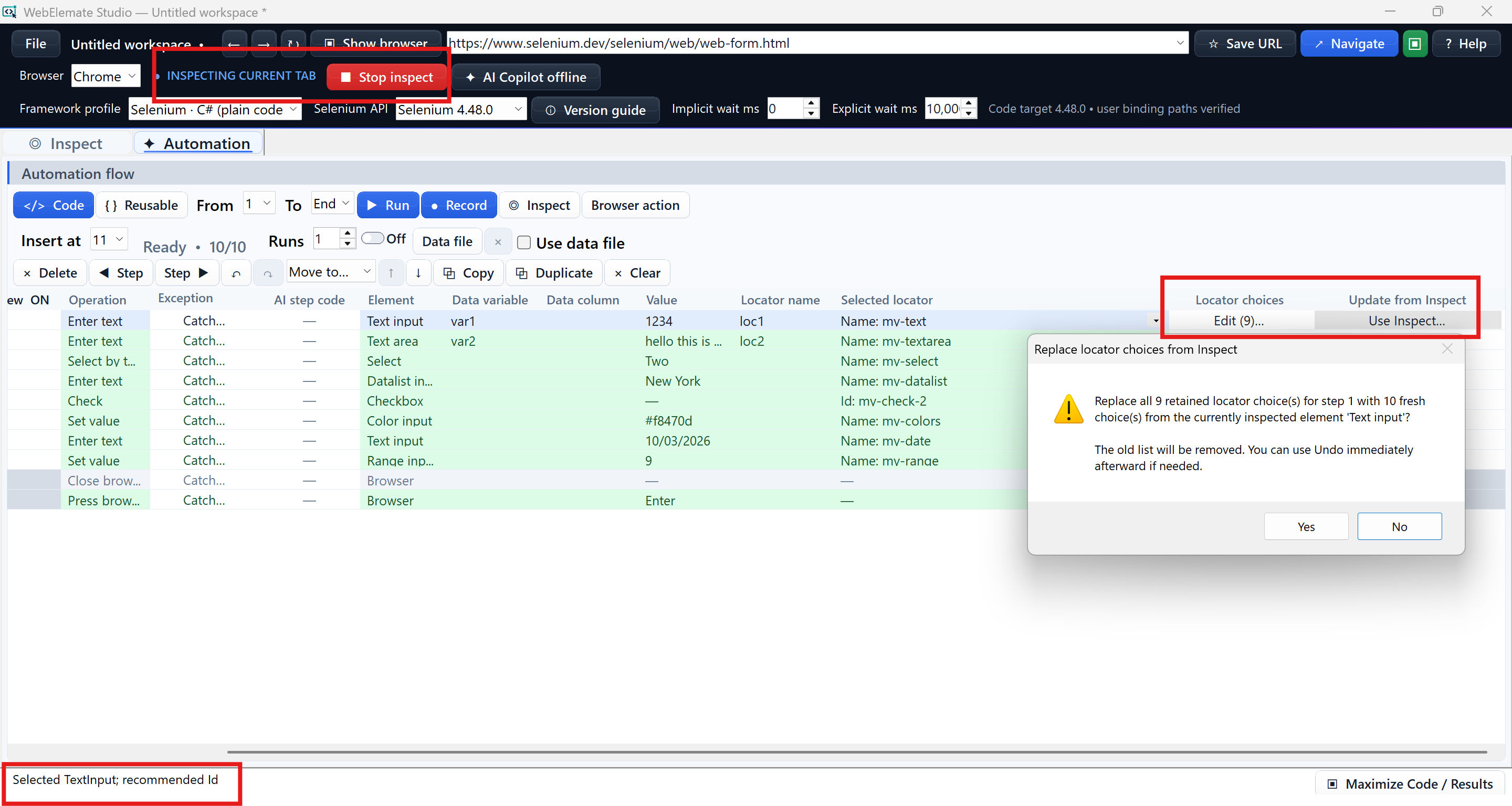
Locator Intelligence creates and validates several candidates, then compares uniqueness, readability, and likely stability. Selectors built from generated classes, session values, or other unstable page details are clearly downgraded.
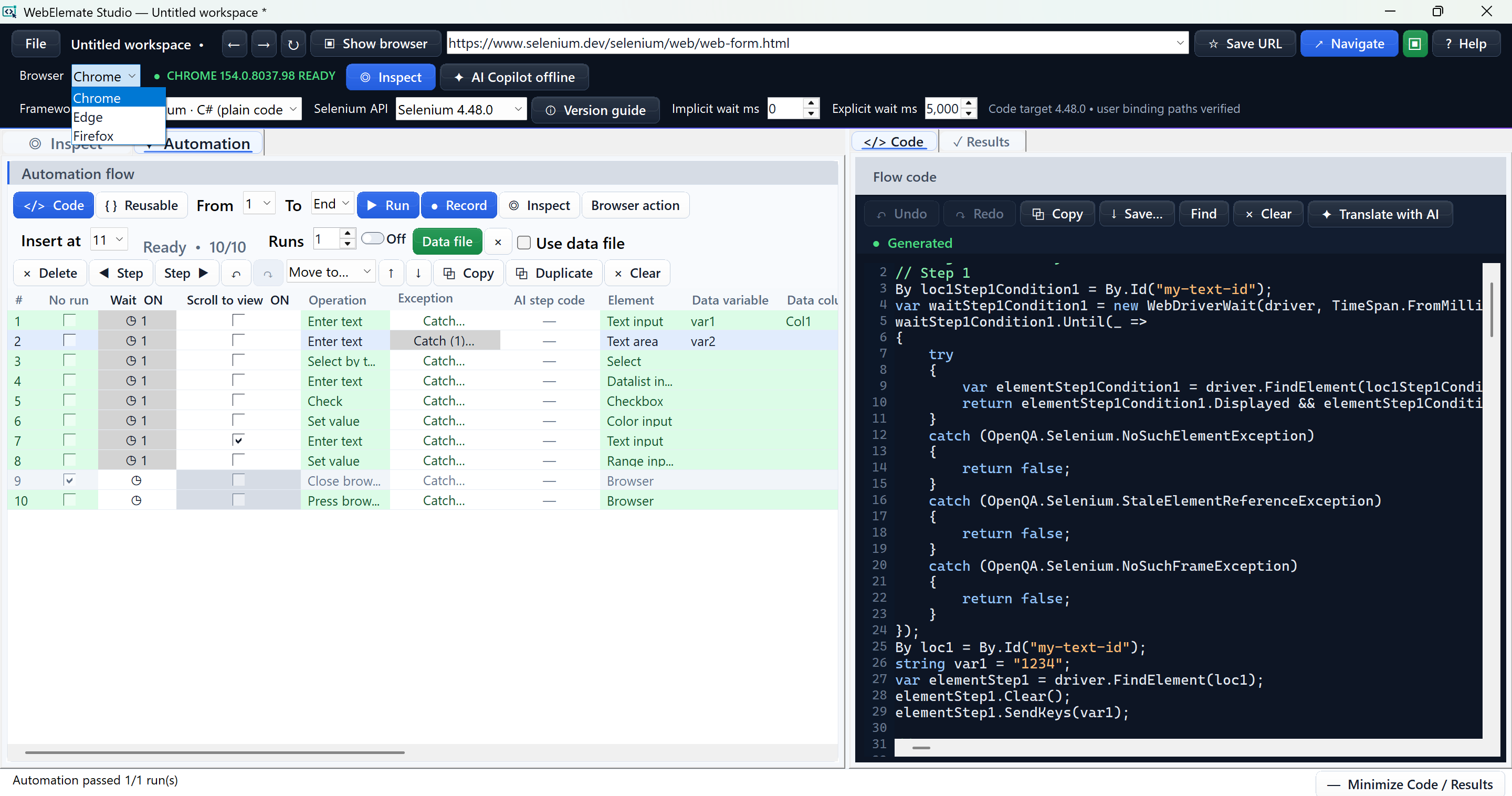
Add a precise step by hand or record a browser journey at the selected insertion point. Both become editable rows in the ordered Automation grid.
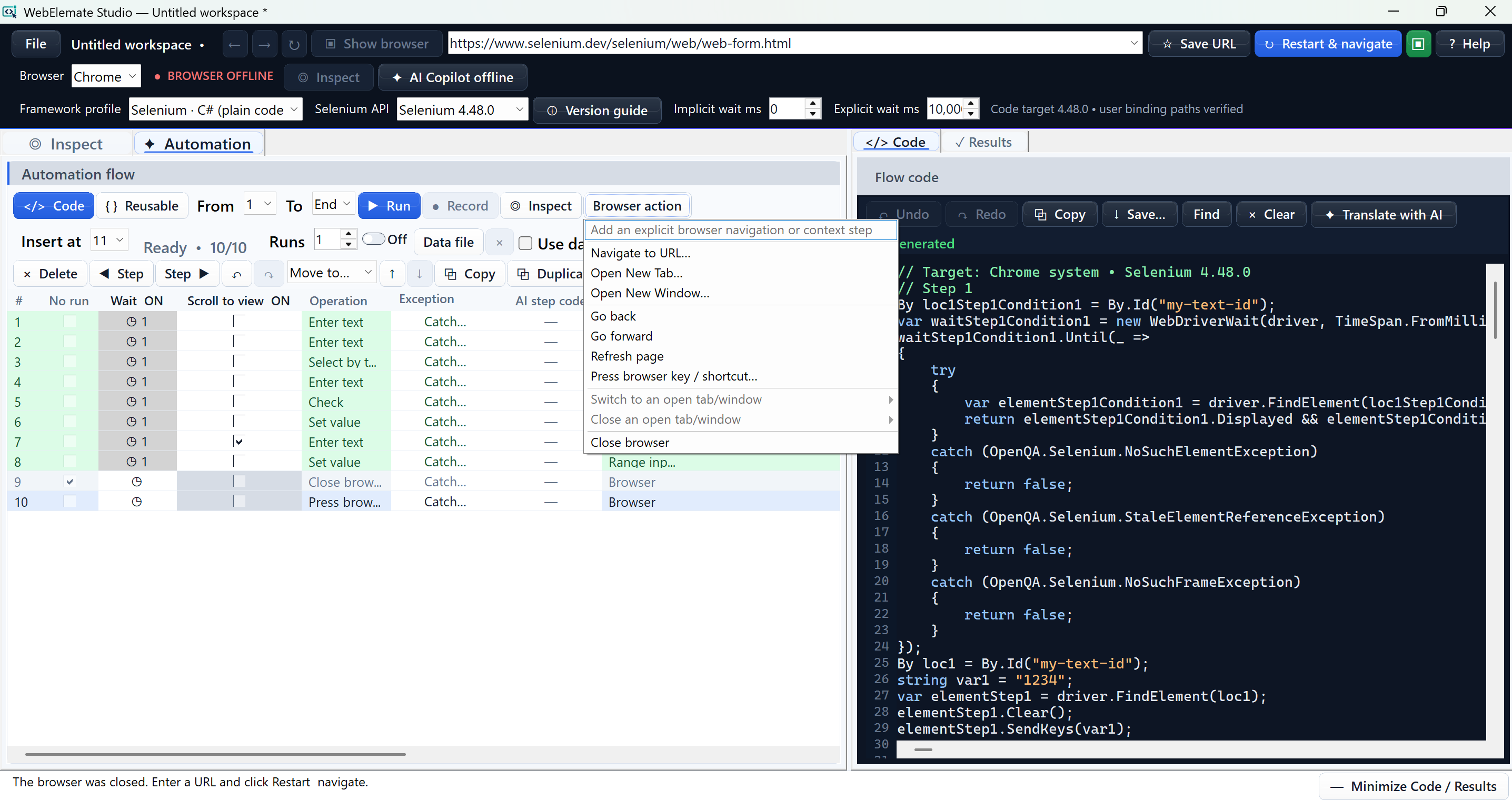
Navigation, opening or switching tabs and windows, and entering frames become visible steps. Studio remembers each tab or window by its order, waits for it to exist during replay, and then switches to it without relying on a temporary browser-session ID.
Preflight checks the run range, required parameters, locators, waits, data columns, row availability, browser state, and context settings before execution.
Run one draft action, step through the grid, execute a range, or repeat data-driven runs. Results identify the step, outcome, timing, evidence, and practical next checks.
Choose plain Selenium or a supported test-framework profile for C#, Java, or Python. Framework-specific assertions and dependencies are generated for the selected target.
The deterministic product works without AI. When Copilot is configured, users choose the provider, the exact context to send, and whether to apply any proposed change.
Product capabilities
The main workflow moves through Inspect, Automation, Code, and Results. Recording, test data, preflight checks, browser and version guidance, workspace recovery, and optional AI review support that workflow when needed.
INSPECT
See identity, type, text or value, page context, relevant attributes, and live state such as visible, enabled, selected, or checked. Accessibility details include the element role and supported ARIA fields such as label, labelled-by, described-by, expanded, selected, checked, current, controls, and popup behavior. Compatible actions and required inputs appear beside the element.
LOCATORS
Compare active and recommended candidates, use JS Test to query supported locators in the live page without triggering the action, and retain alternatives for later repair.
AUTOMATION
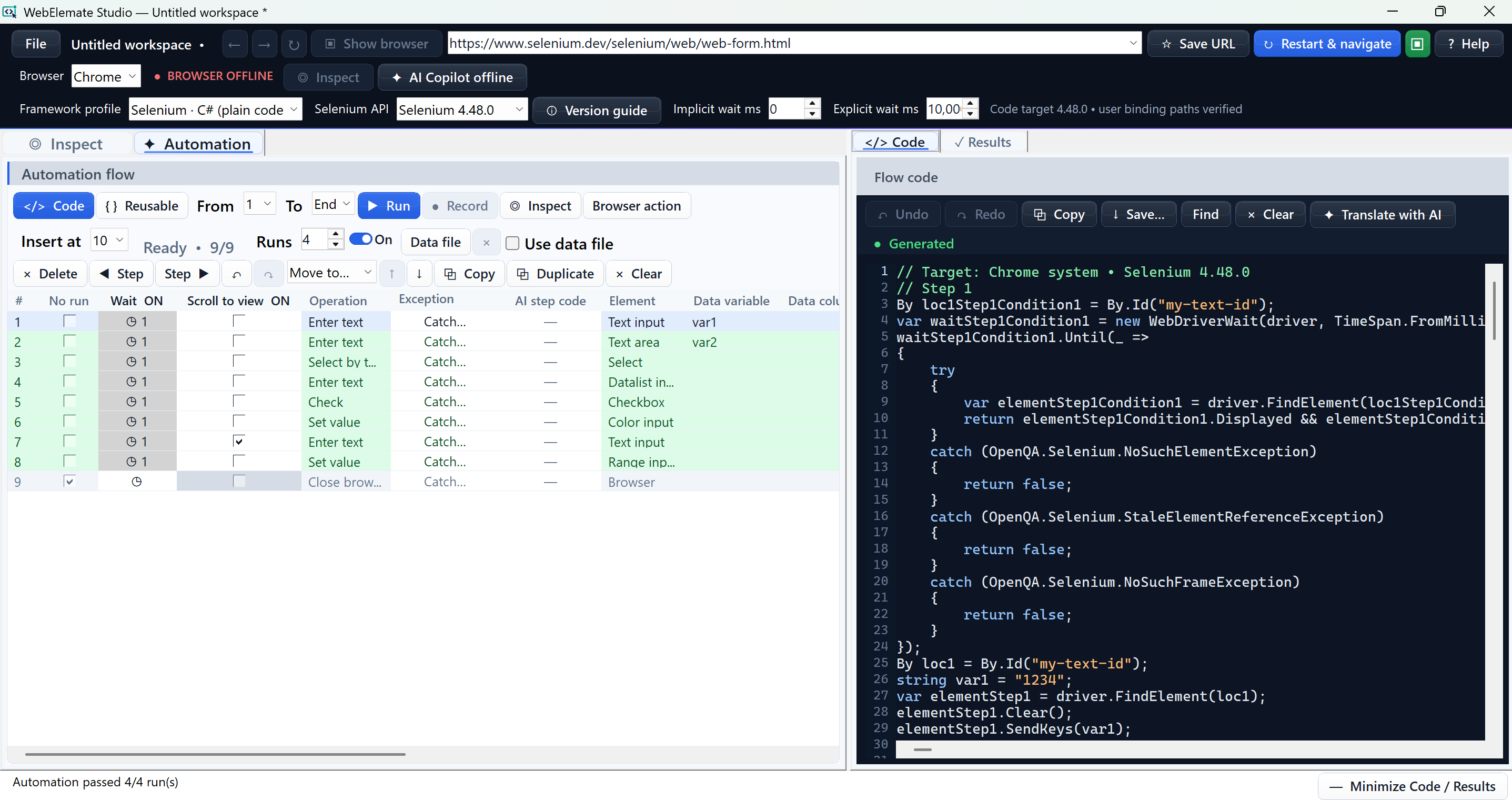
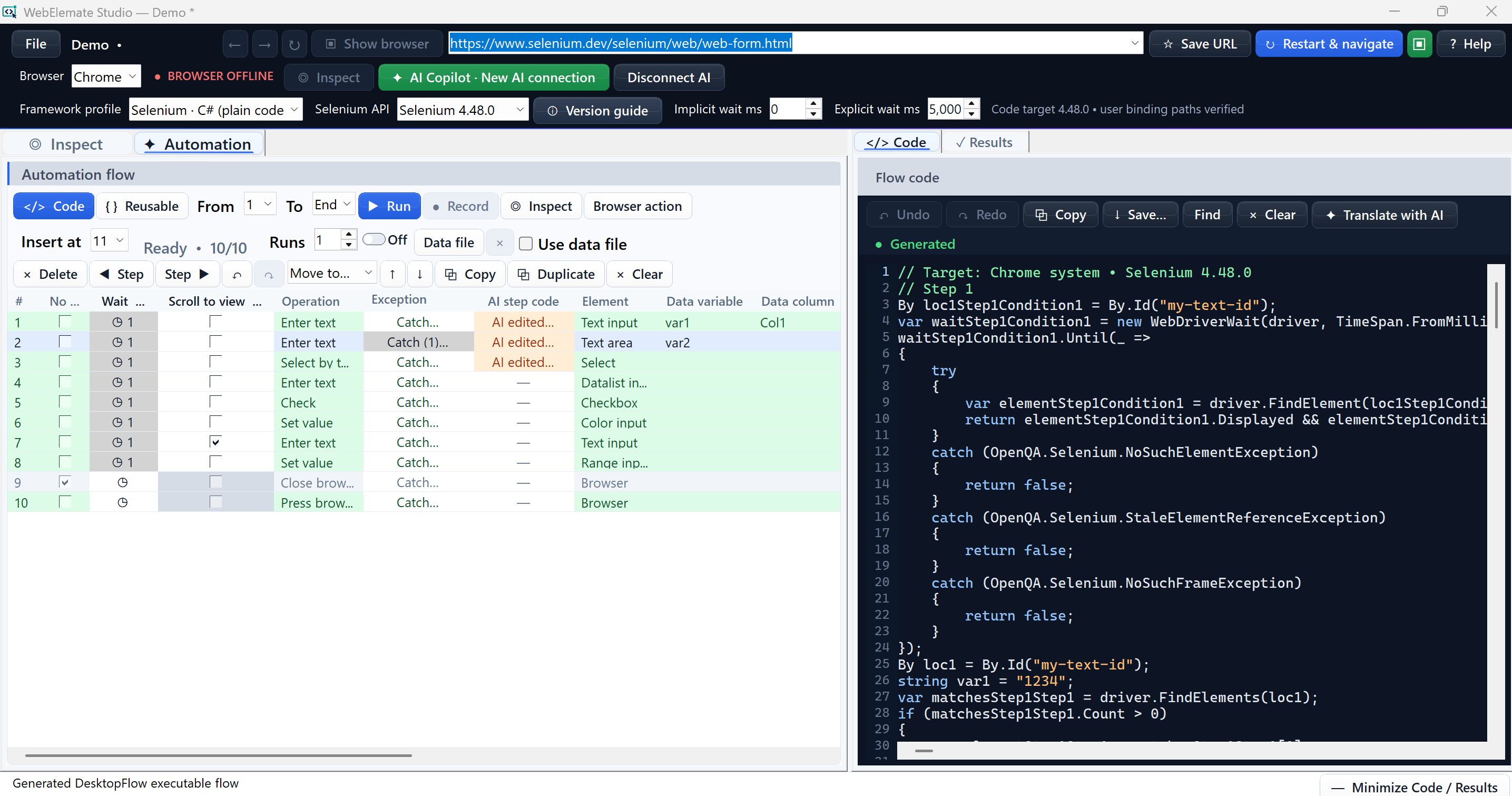
Insert, record, reorder, duplicate, move, and run the visible sequence without rebuilding it elsewhere. Mark a row No run when playback should skip it while code generation, reusable handoff, and AI review continue to include it.
DATA & PREFLIGHT
Use CSV, JSON, XLSX, or XLSM data. Validate required columns, row counts, locators, parameters, and browser context before playback starts.
CODE
Generate C#, Java, or Python with supported assertion frameworks. Review and edit the source, then preview the exact destination before saving.
RESULTS
See the run and step that executed, duration, PASS, FAIL, or amber HANDLED outcome, captured return values, data source, and whether the WebDriver browser was kept open or closed between runs. Failures include categorized repair guidance and redacted technical details.
WORKSPACES
A saved workspace restores ordered steps, waits, locator choices, values and data mappings, run settings, browser and code-profile choices, editor content, and relevant layout state. Live browser handles, Results reports, AI chats, and secrets are not stored in the portable workspace. Local recovery provides an additional snapshot for unsaved authoring work.
WAIT, SCROLL & RECOVERY
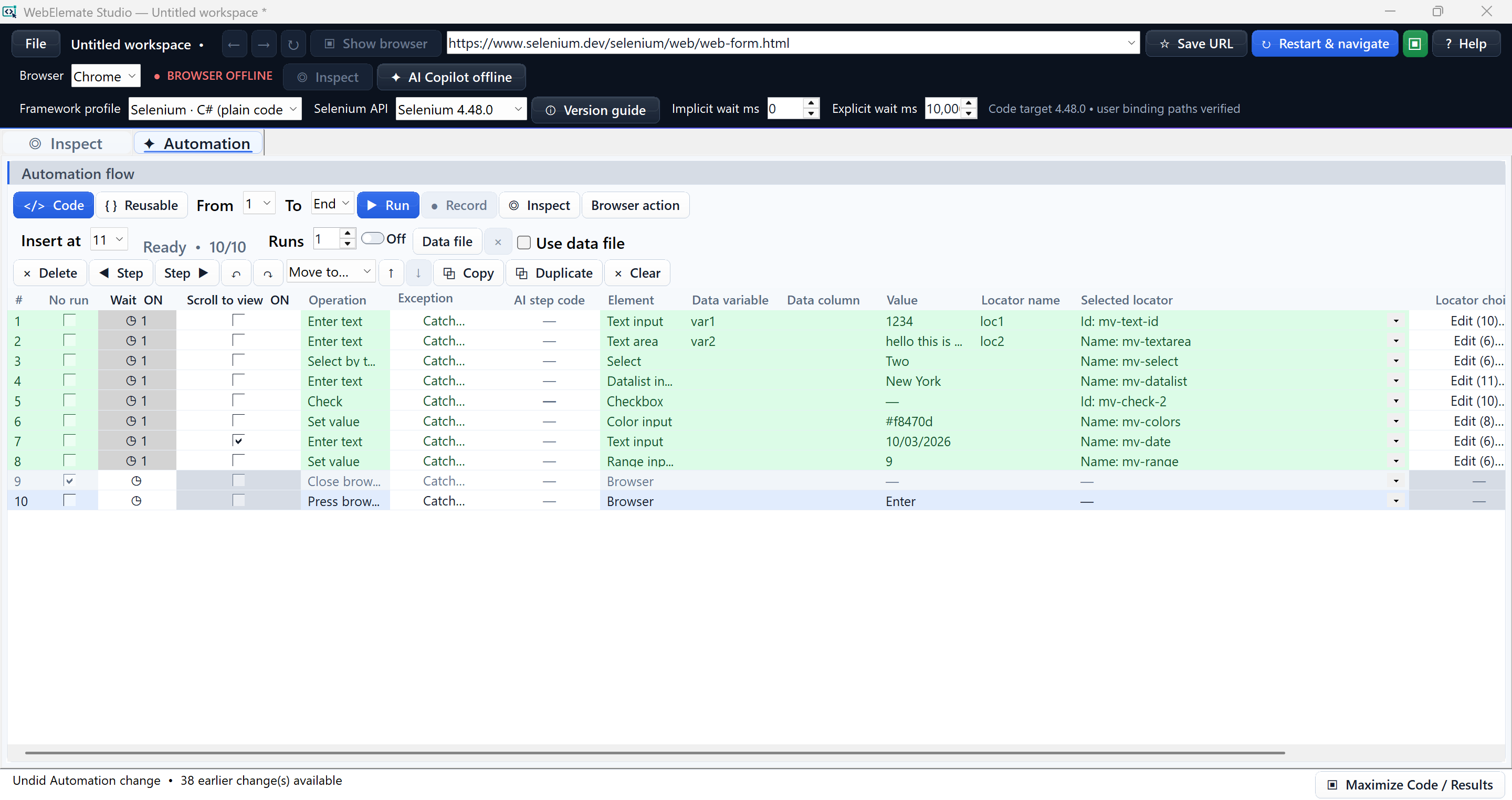
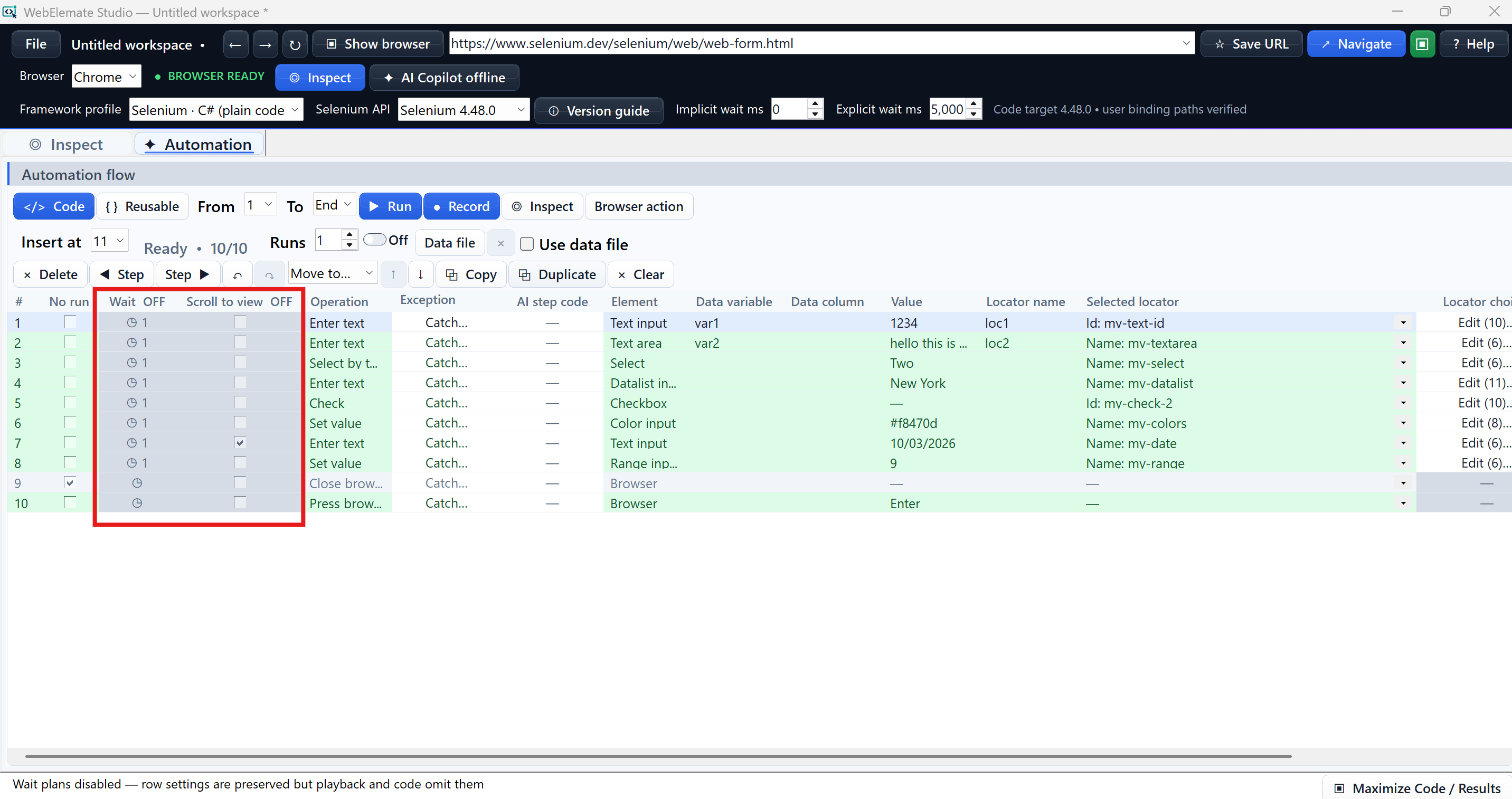
Build an ordered wait plan, optionally center and verify the target before interaction, and choose typed exception handling that either stops the flow or continues with an amber HANDLED result.
KEYBOARD
Add Enter, Tab, Shift+Tab, Escape, arrows, function keys, modifiers, or another supported shortcut to a selected element or to the browser's active element.
REUSABLE CODE
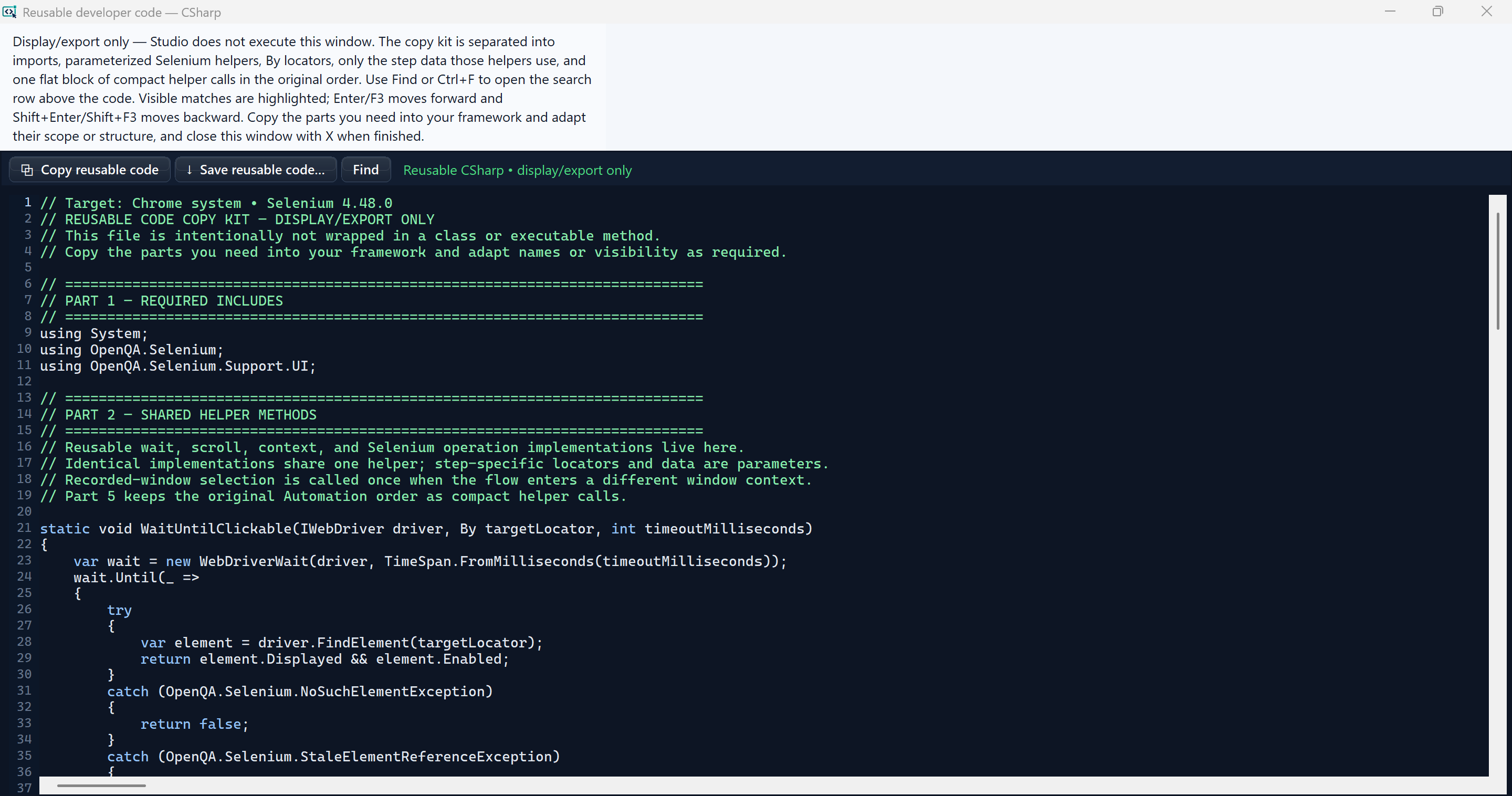
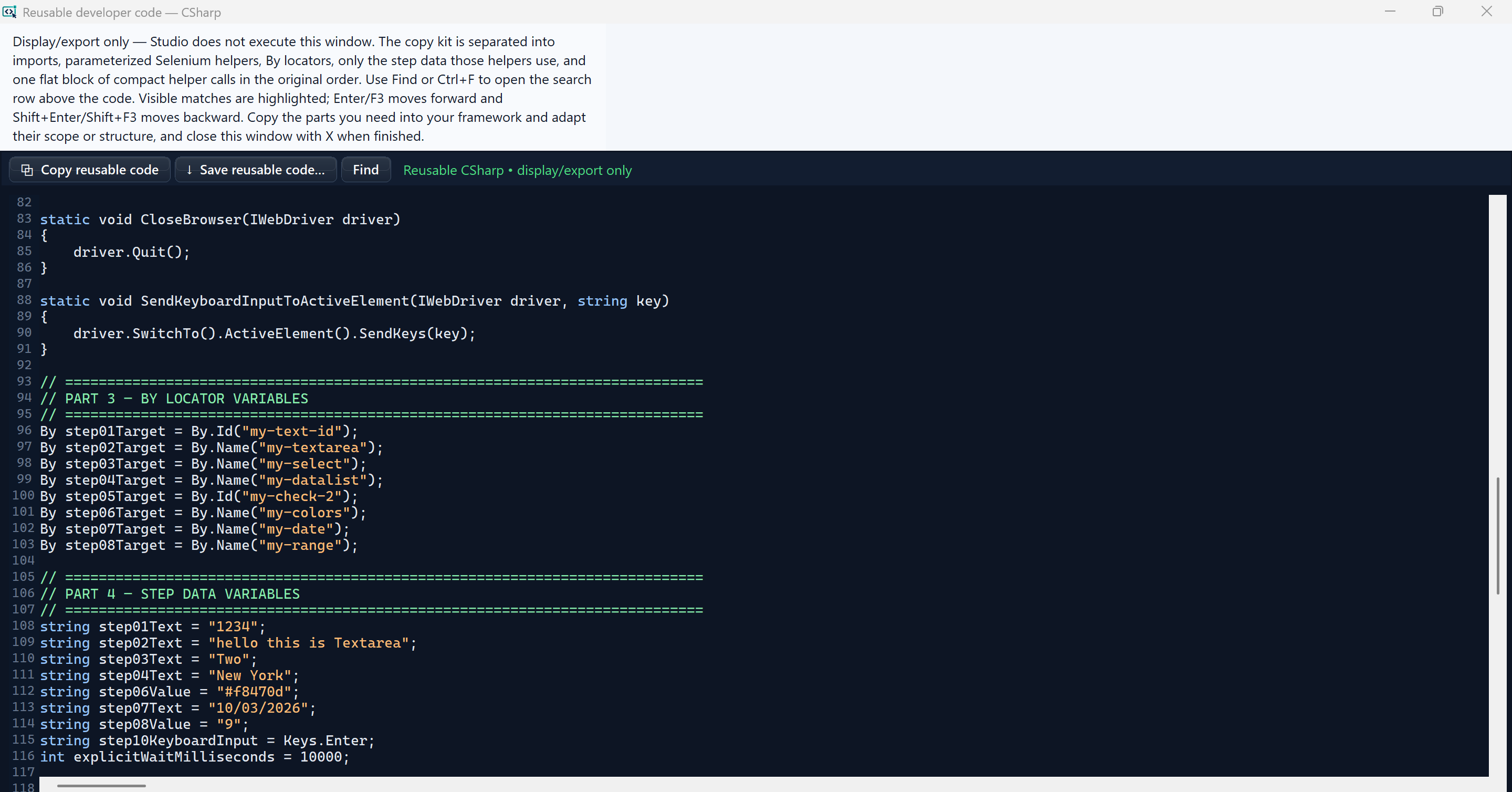
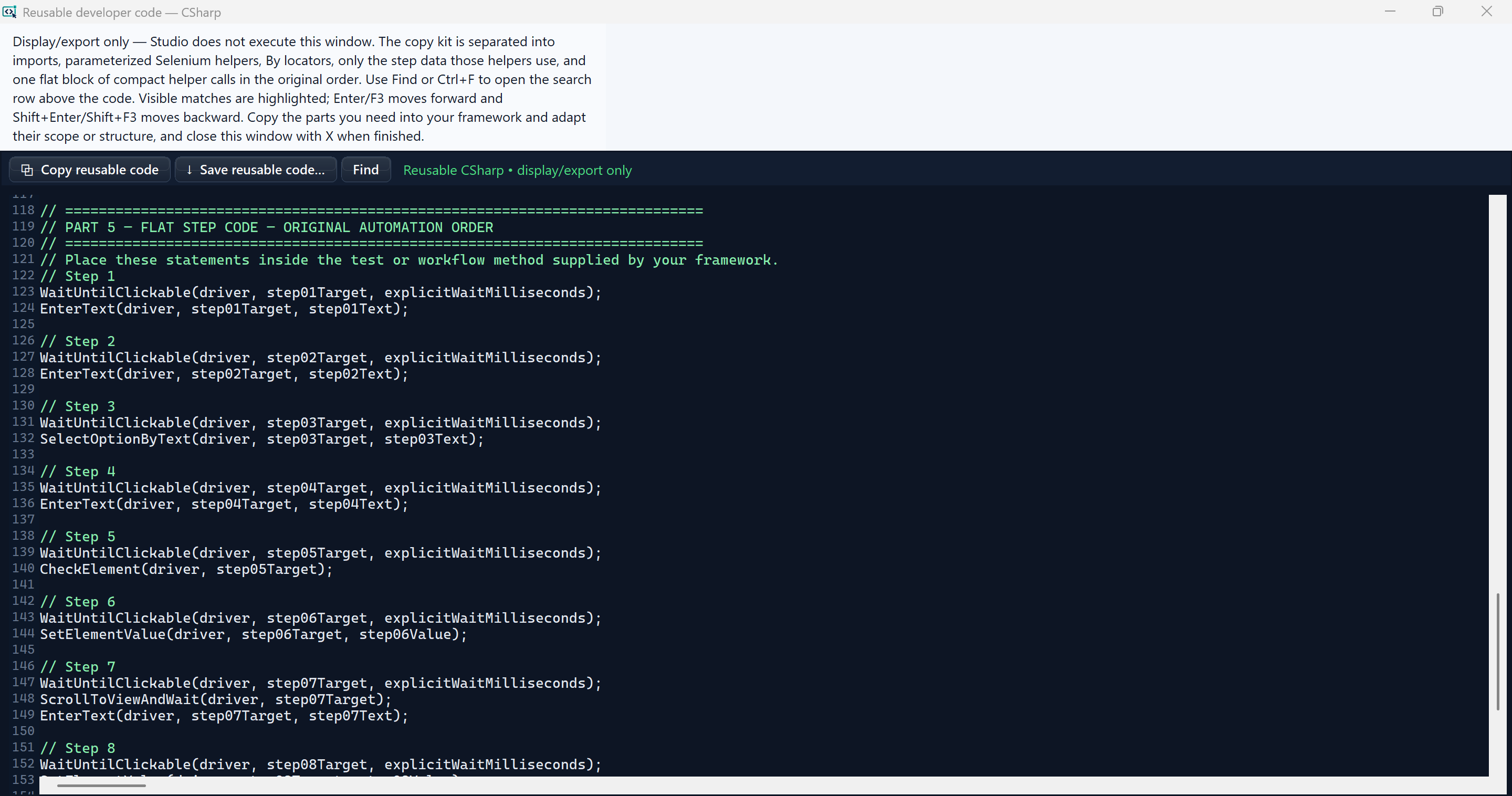
Generate imports, shared helpers, named locators, referenced data, and an ordered Step 1…N call block without creating one duplicate method per step. Studio never executes this read-only handoff.
AI COPILOT
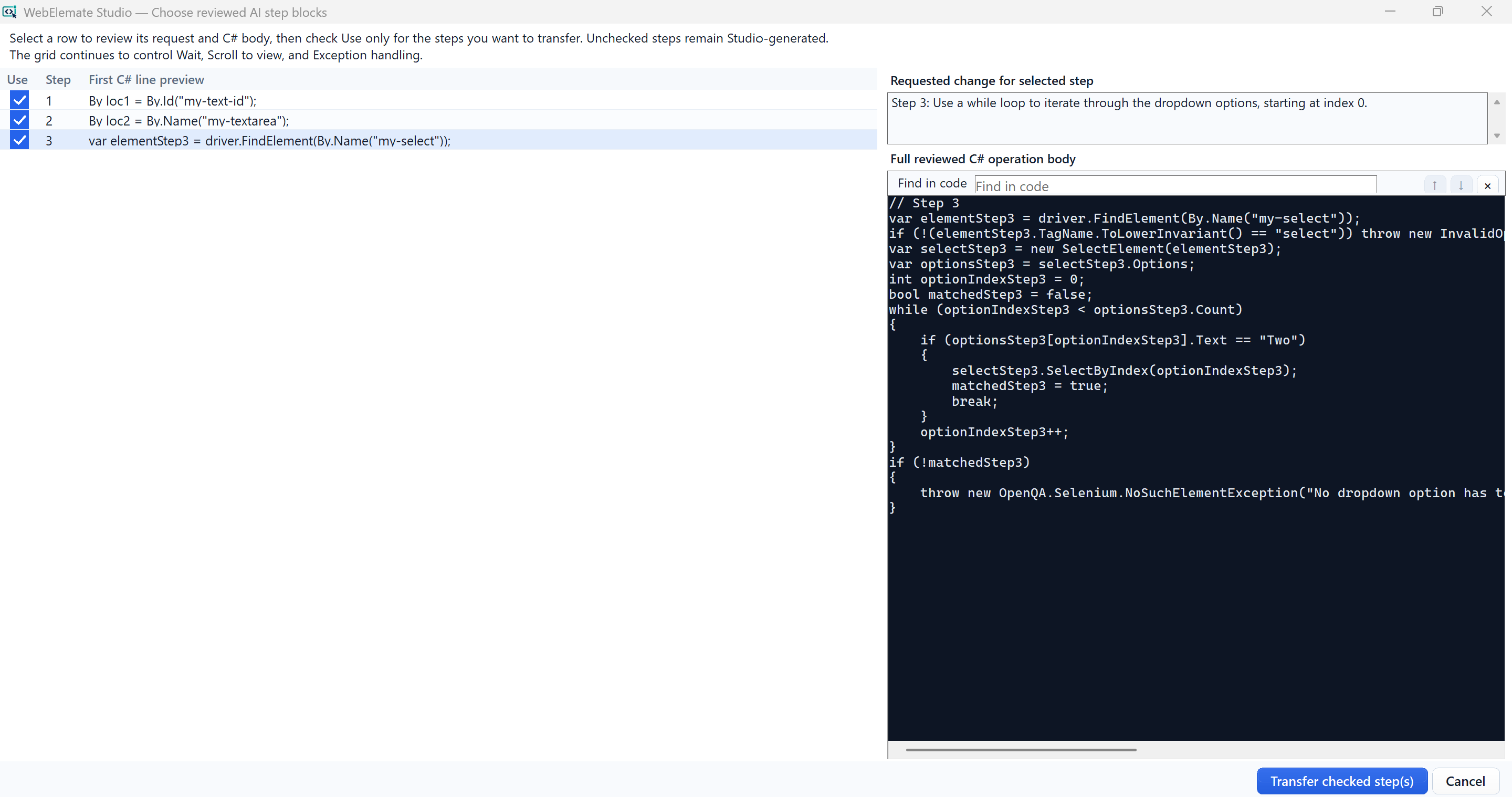
Choose redacted context, preview the payload, request analysis or code review, and transfer only explicitly selected C# step bodies. Java, Python, and other translations remain review-and-export artifacts.
One connected path
A clear path for first-time users, with enough evidence and control for experienced automation engineers.
Choose an installed Chrome, Edge, or Firefox browser and navigate to an authorized test environment.
Select an element, review its semantics and locator candidates, then choose the action that matches the control.
Add the step exactly where it belongs, or capture the rest of the journey into the same Automation grid.
Arrange condition-based waits, enable scrolling when a target may be obscured, and define what each expected exception should do.
Set data, range, and repeat count. Preflight checks the visible flow before the browser begins, then Results separates passed, failed, and handled outcomes.
Generate ordinary flow code or a reusable developer copy kit, optionally review selected C# step bodies with AI, then safely save C#, Java, or Python for the destination project.
Value for the team
People are not limited to one role in WebElemate. Anyone can inspect, build, record, run, debug, review, or export a flow according to the work they need to complete.
The inspected element, locator choices, ordered steps, waits, data, Results, and generated code remain easy to review together.
Live locator validation, JS Test, preflight checks, and single-step execution catch common problems before a full run or code handoff.
Readable C#, Java, or Python code follows the selected framework’s structure, dependencies, setup, cleanup, and assertion style.
Teams choose browser settings, data, run range, export destination, update behavior, AI provider, shared context, and whether to apply proposed changes.
Guided product tutorial
Product screenshots now sit beside the feature they explain. Each guide covers the controls, likely challenges, and what to inspect before changing the flow.
Open the complete documentation tutorial →Confirm the browser context, element evidence, step order, policies, and Results before changing code.
Check readiness, locator, frame or tab context, interception, and page state before increasing a timeout.
Generated and AI-assisted source remains developer-owned code and must fit the destination repository.
FIRST RUN
FILE & WORKSPACE
APPLICATION HEADER
INSPECT
LOCATOR INTELLIGENCE
WebElemate can create ID, name, CSS, XPath, link-text, role/accessibility, stable navigation-path, semantic-parent, and structural candidates. It validates the exact inspected DOM node, checks uniqueness, recognizes unstable tokens and generated page attributes, and scores expected durability.
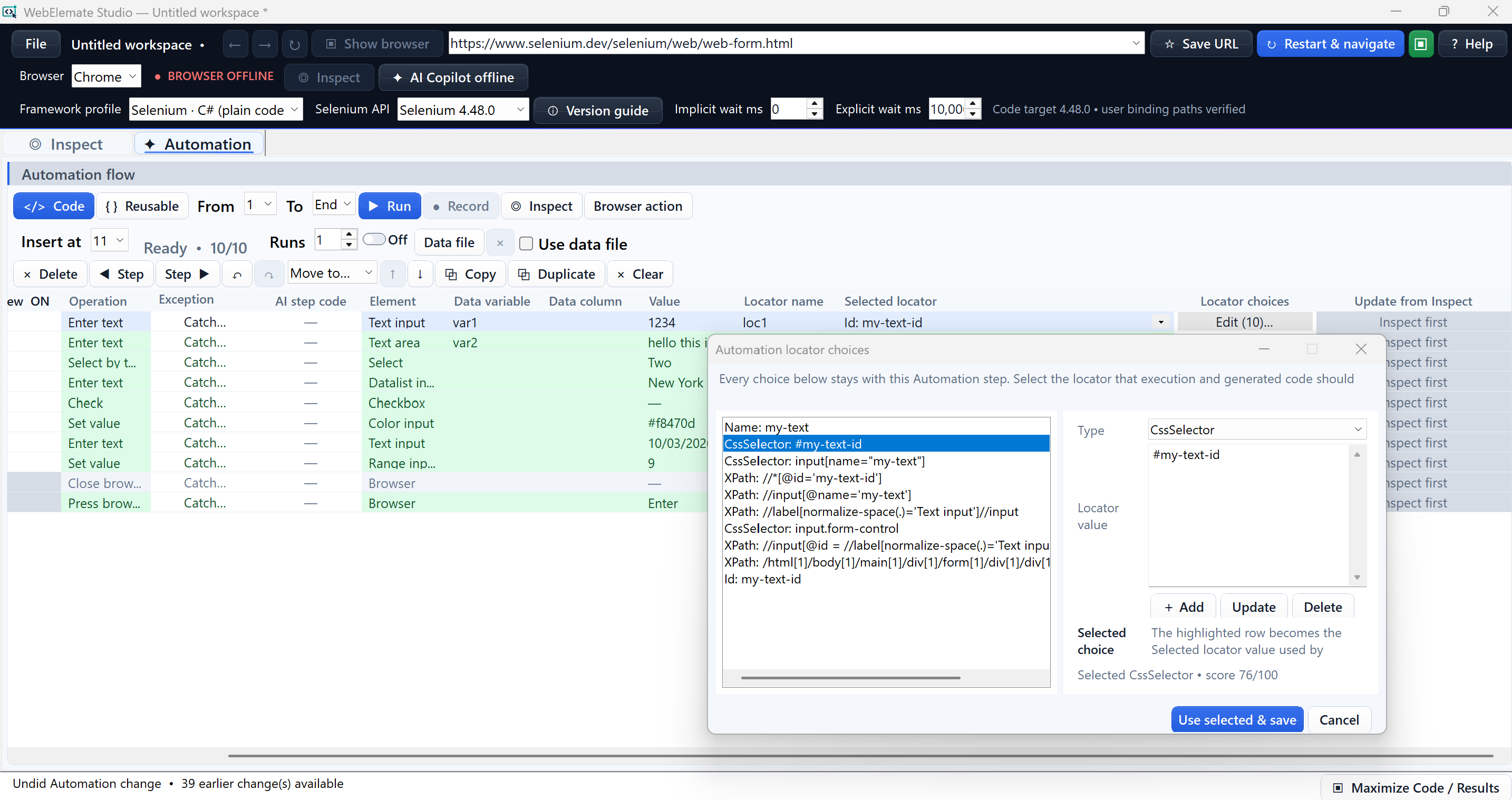
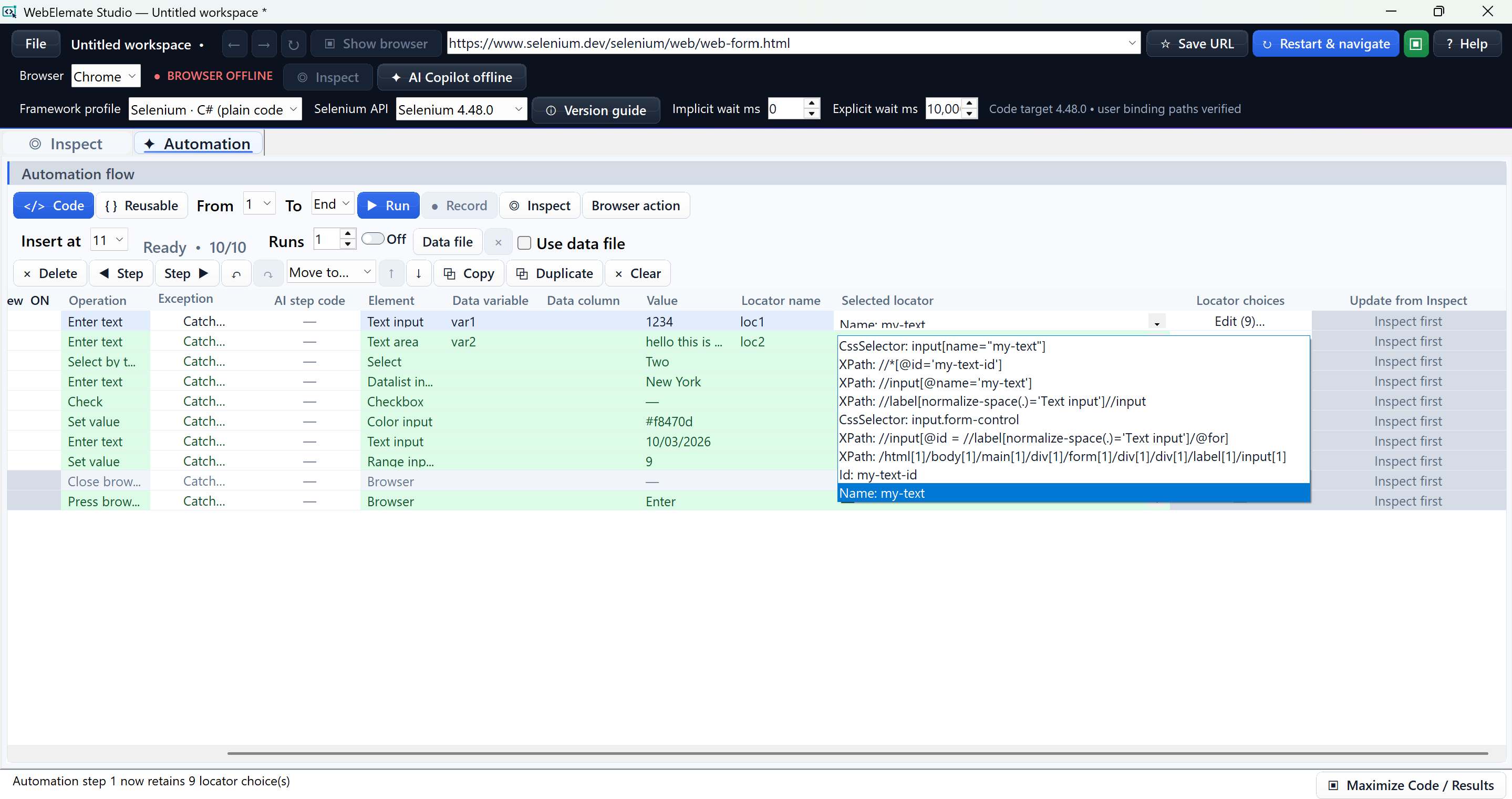
AUTOMATION
No run appears immediately after #. A checked row is skipped only during flow playback; it remains available to Code, Reusable, AI review, save/load, move, copy, and all other authoring operations. Wait, Scroll to view, Exception, AI step code, Data variable, Data column, Value, Locator name, Selected locator, Locator choices, and Update from Inspect stay with each row. Operation is fixed after creation. The grid scrolls horizontally so every field remains reachable.
WAIT, SCROLL & RECOVERY
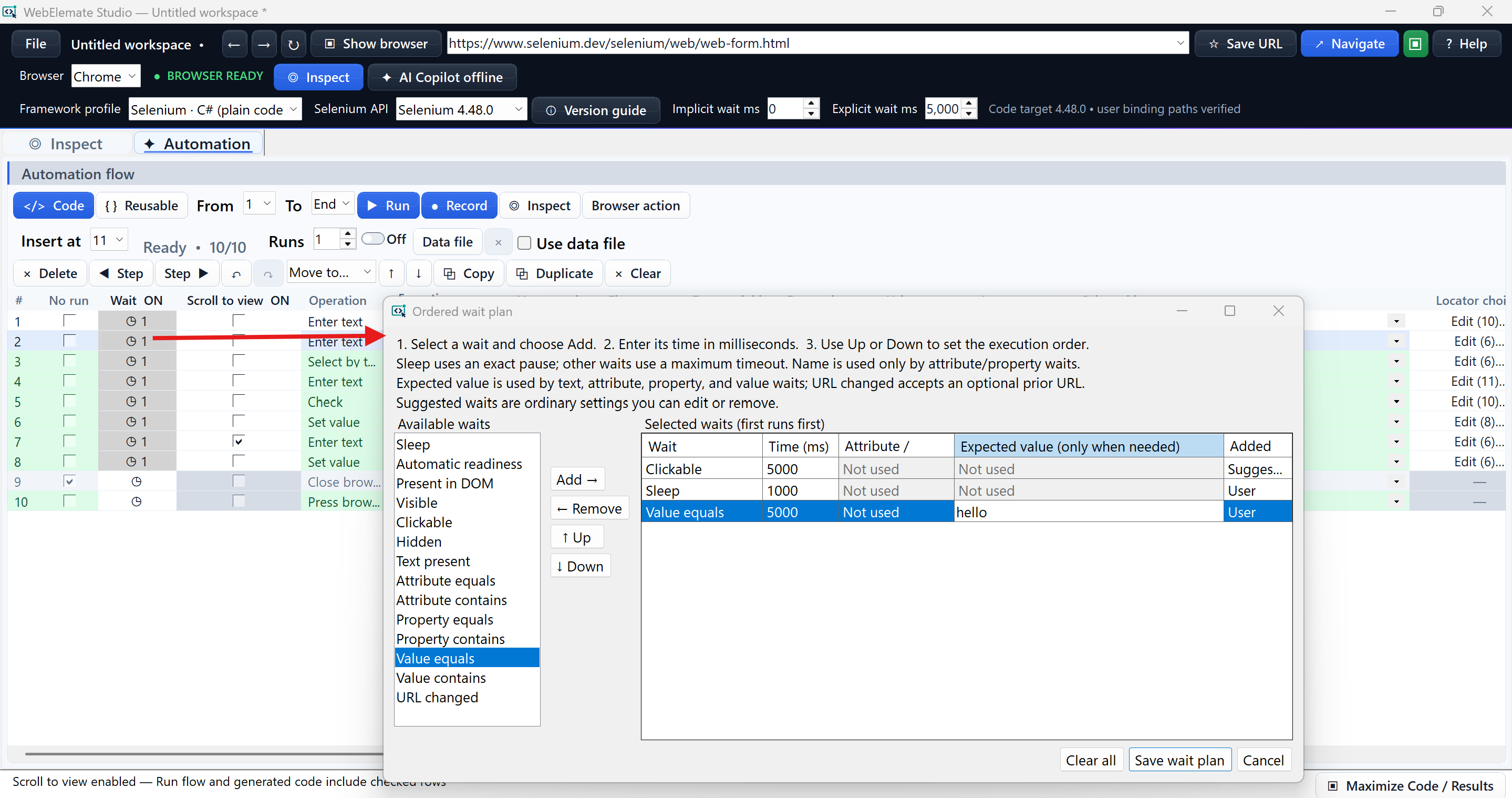
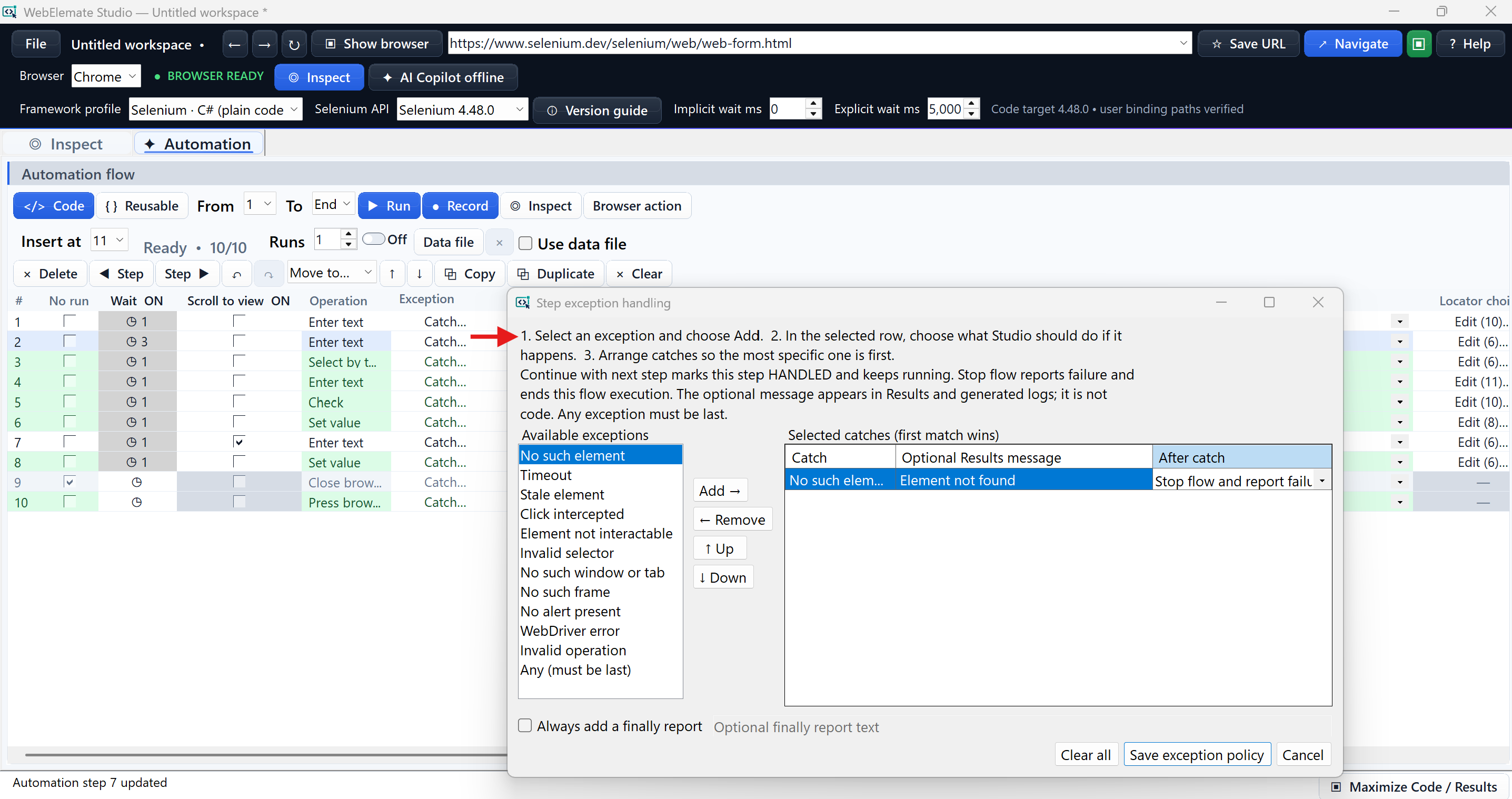
RECORDING & CONTEXT
SEMANTIC KEYBOARD ACTIONS
DATA & PREFLIGHT
Before the browser moves, preflight validates the requested range, supported operations, required locators, locator types and values, parameters, waits, data file, row count, required columns, tab/window indexes, and settings required by the chosen browser. Blocking rows turn red and do not run partially.
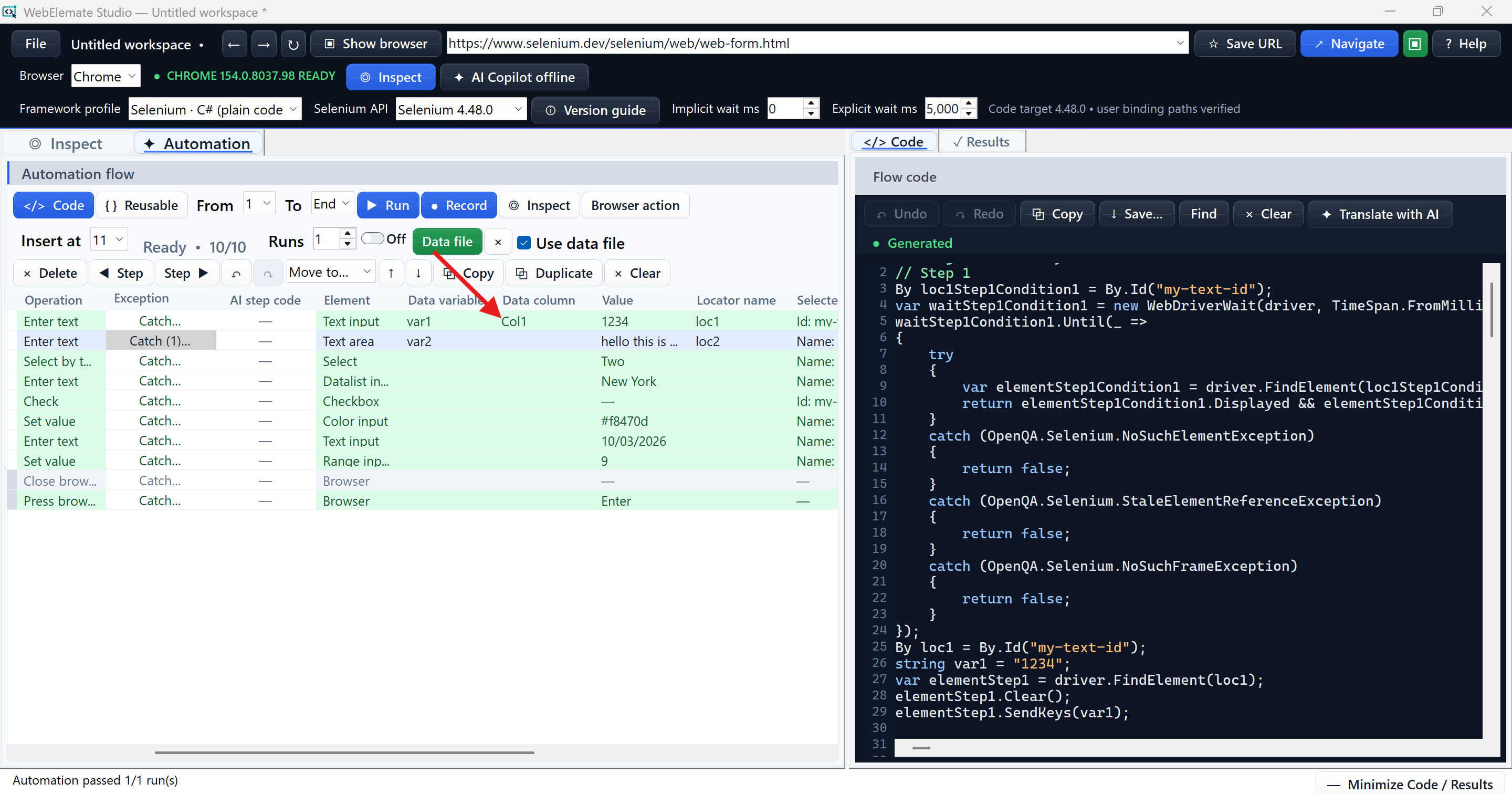
RUN & RESULTS
CODE & EXPORT
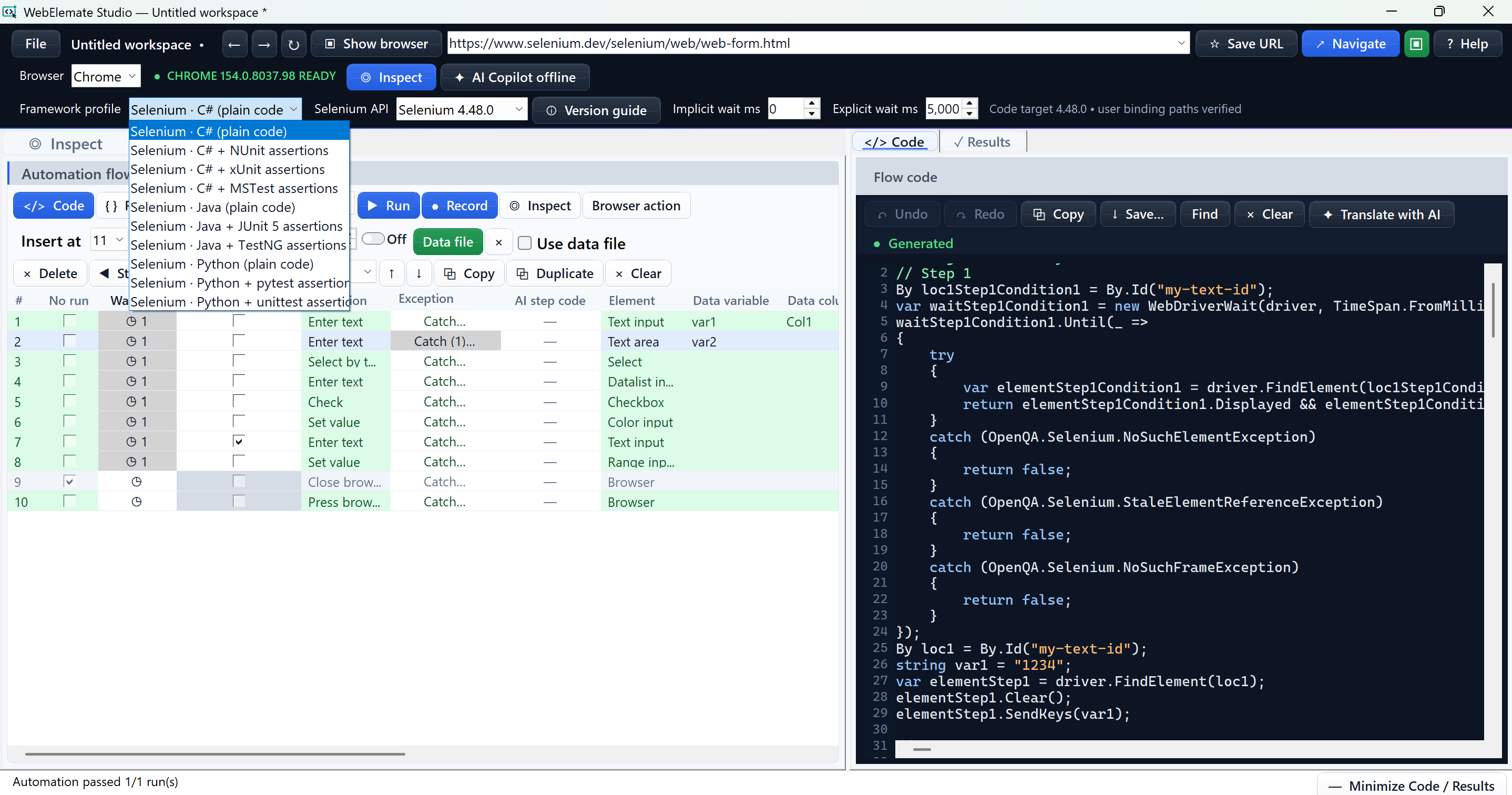
REUSABLE DEVELOPER CODE
VERSION GUIDE
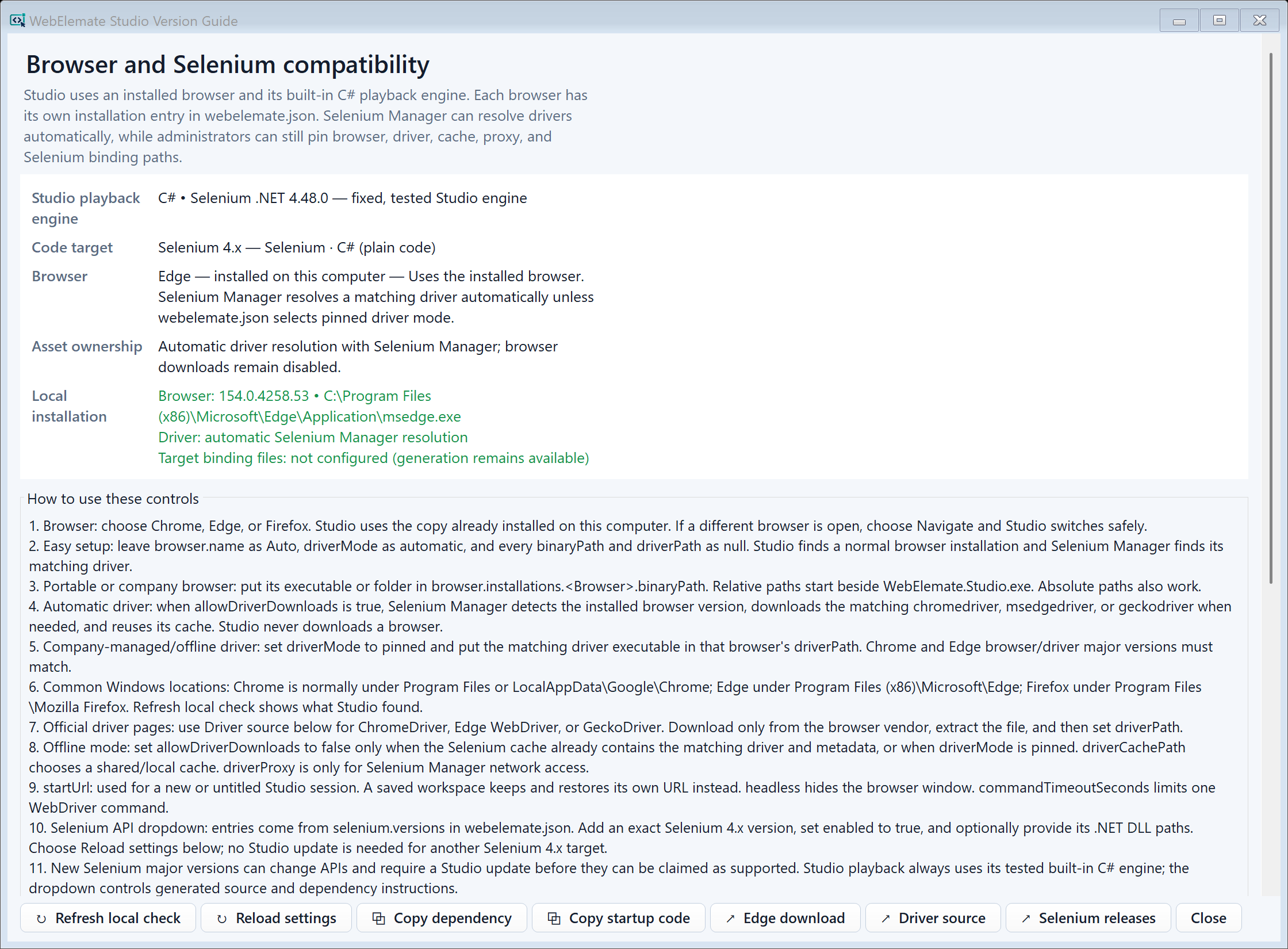
Zero-setup: leave browser and driver paths unset, use automatic driver mode, and allow Selenium Manager to resolve and cache a matching driver. Managed enterprise: set approved per-browser paths, pin matching drivers, use a prepared offline cache or proxy, and control downloads through policy.
OPTIONAL AI COPILOT
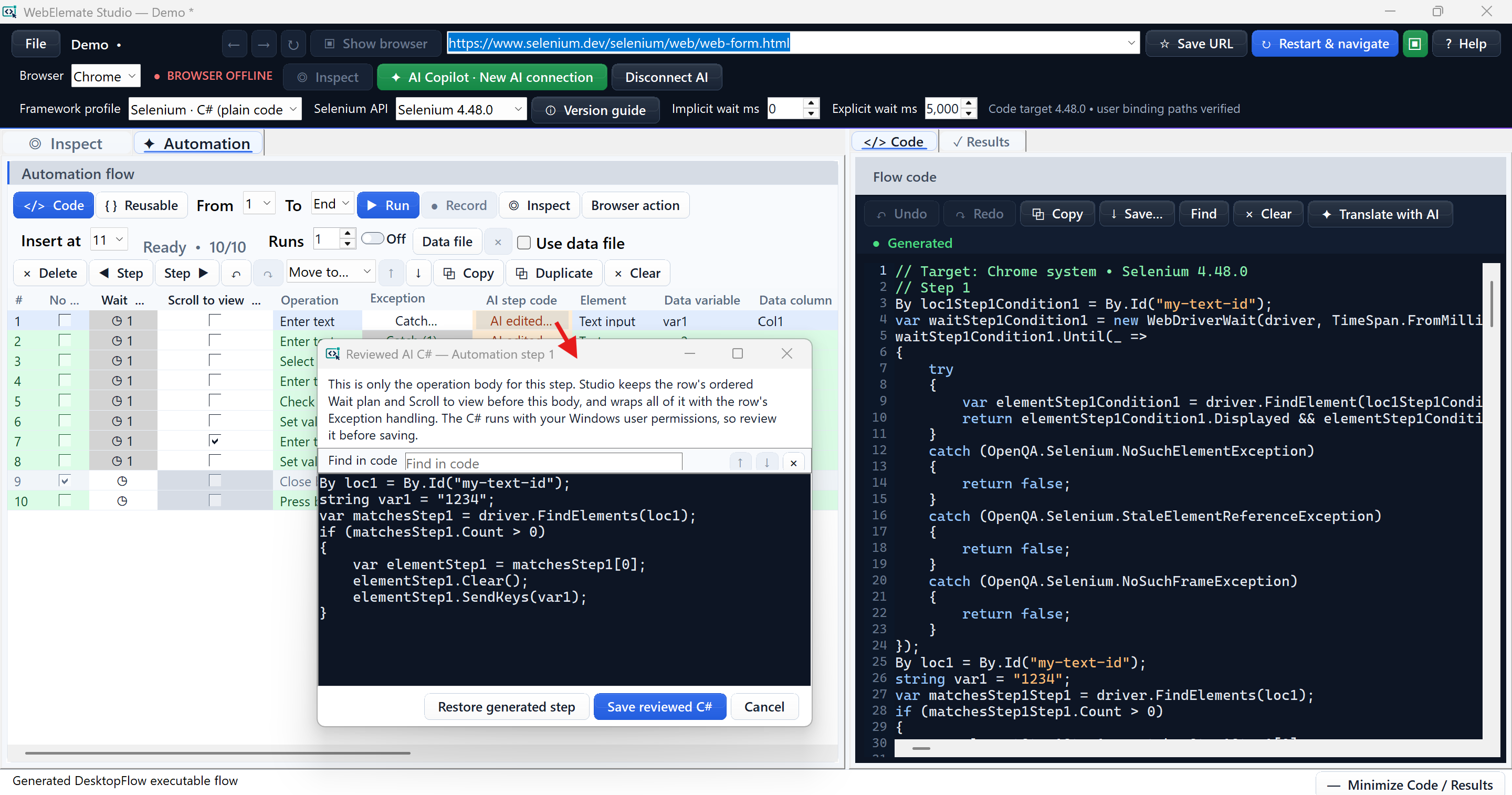
// Step N marker and tell the model not to duplicate grid-owned waits, scrolling, or catch wrappers.“For Step 5, use FindElements with the existing locator. If count is greater than 0, click the first displayed and enabled match; otherwise throw NoSuchElementException. Return only the C# operation body. Do not add waits, scrolling, or catches.”
“For Step 8, use a bounded for loop over the existing matches. Click once, set a flag, break immediately, and throw a clear exception if no usable element is found.”
“For Step 11, if the match collection length is more than 0 and the first input is displayed and enabled, clear it and enter the existing step value; otherwise throw a clear Selenium exception.”
Verified scope
WebElemate is a focused Windows desktop authoring and playback product. It complements the engineering stack around it.
Studio controls an installed browser through WebDriver. It does not install the browser or act as a hosted execution farm.
The selected profile changes test structure, imports and dependencies, setup and cleanup, assertions, and failure APIs. Generated source must still be reviewed, compiled, tested, and integrated in the destination repository.
Map inputs to data columns, choose the run range and count, and let preflight verify the file, required columns, and available rows before the browser moves.
Opening and switching contexts remain visible operations. Replay waits for the required tab or window position and restores frame context only when a step needs it.
WebElemate focuses on authorized browser-test authoring and playback. Teams still own target permission, destination-code review, security policy, provider terms, and production approval.
Designed for responsible use
Inspection, recording, playback, diagnostics, and code generation work without an AI connection.
Users select locators, actions, waits, data, ranges, export destinations, and whether to apply proposals.
Diagnostics and AI context apply redaction; credentials use protected Windows storage when remembered.
Administrators can control browser and driver paths, downloads, caches, proxies, host restrictions, AI providers, and update manifests.
Product leadership
“I created WebElemate Studio to make reliable browser automation easier to build, review, and improve—without taking control away from the people who own the tests.”
Dhaval Parikh is the creator and lead architect of WebElemate Studio. The product direction is practical: keep browser evidence visible, make automation decisions understandable, produce code teams can review, and ensure execution, data, diagnostics, exports, and optional AI assistance remain under user control.
Frequently asked questions
It is for anyone responsible for understanding, building, reviewing, or maintaining browser tests—including testers, developers, automation engineers, analysts, domain experts, accessibility specialists, reviewers, and technical leaders. The same person can use any part of the workflow; WebElemate does not restrict features by job title.
No. Playback intentionally uses Studio’s tested built-in C# Selenium engine. Java and Python profiles generate destination source; those runtimes and builds belong in the destination project or CI system.
No. The current user interface exposes C#, Java, and Python profiles. JavaScript-related implementation settings are reserved and should not be treated as a current product promise.
It does not install or uninstall browsers. For WebDriver, Selenium Manager can resolve and cache a matching driver automatically, or an administrator can configure a pinned driver or prepared offline cache.
Websites change. Keeping validated alternatives preserves the original reasoning and allows repair without repeating the entire authoring journey.
JS Test checks a supported CSS, XPath, ID, name, or link-text locator against the current live document or frame without performing the target action. It reports matches and whether the exact inspected element was found. It is a locator-verification feature, not JavaScript code export, and shadow-root rows use the validated Selenium result instead.
Open and Switch are separate operations. Studio numbers tabs and windows from zero in the order they appear. During replay it waits until the required number of contexts exists, then switches to the saved position instead of depending on a temporary browser-session handle or searching by URL.
Implicit wait is WebDriver's flow-wide element lookup policy. Explicit wait ms only seeds a visible Suggested condition for new eligible rows. Each row can then keep its own ordered conditions, and a manually saved plan is not overwritten by later header changes.
The matching row is marked amber HANDLED, its optional diagnostic message is included, and execution continues with the next step. It is not counted or colored as a pass. A Stop rule reports failure and ends that flow execution.
It is a read-only developer copy kit: imports, deduplicated helpers, named locators, referenced data and policy values, and one ordered Step block. Studio never executes it, and it does not replace the ordinary Flow code editor.
No. Save opens a review-first export preview. A different existing file is a Conflict and requires explicit Replace approval. If the file changes after preview, the stale plan stops before writing.
No. The core product is deterministic and works with AI offline. Copilot is an optional review assistant that receives only the context categories selected by the user after privacy preview and redaction.
No. Copilot is a review surface, not a second execution engine. Only explicitly checked supported C# Step bodies can be transferred to their matching Automation rows. They run later through the ordinary flow, surrounded by the grid-owned wait, scroll, and exception policies.
No. Your repository, test framework, builds, code review, and CI remain the source of truth. WebElemate improves browser-based authoring, validation, debugging, and code handoff.
Yes. Generated source must be reviewed, compiled, tested, and integrated in the destination repository. Framework and Selenium selections shape the output but do not replace engineering review.
It changes the generated test structure, imports and dependencies, setup and cleanup, assertion calls, and failure APIs for the selected C#, Java, or Python framework. Studio playback itself continues to use the built-in C# Selenium engine.
The product website includes the current Privacy Policy, Terms of Use, End-User License Agreement, and license, dependency, notice, and SBOM information.
Available for Windows
Install WebElemate Studio from Microsoft Store, then follow the five-minute tutorial to build your first reviewable flow.